Importing objects to the NACVIEW🔗
This feature allows for system administrators bulk data uploads via CSV (Comma-Separated Values) files, eliminating the need to manually input records one by one. During the import operation file used is verified for correctness and import is allowed only when validation is successful. In the event of incorrectness (or lack of necessary information), the error or warning in question is displayed and corrective action may be suggested by the system.
Supported object types🔗
Imports in NACVIEW NV3 are available for 6 object types:
VLAN,
Subnetwork,
Network Device,
Endpoint Device,
MAC Address,
Identity.
File formatting🔗
To be considered for import, a file have to:
be saved in the UTF-8 format,
be formatted in proper CSV with comma ‘ as a delimiter,
have a proper file extension - .csv,
have a header row,
not be empty.
For each object type, a template file is available for download from the import wizard.
Import process🔗
Navigate to the dedicated import section within the appropriate object section.
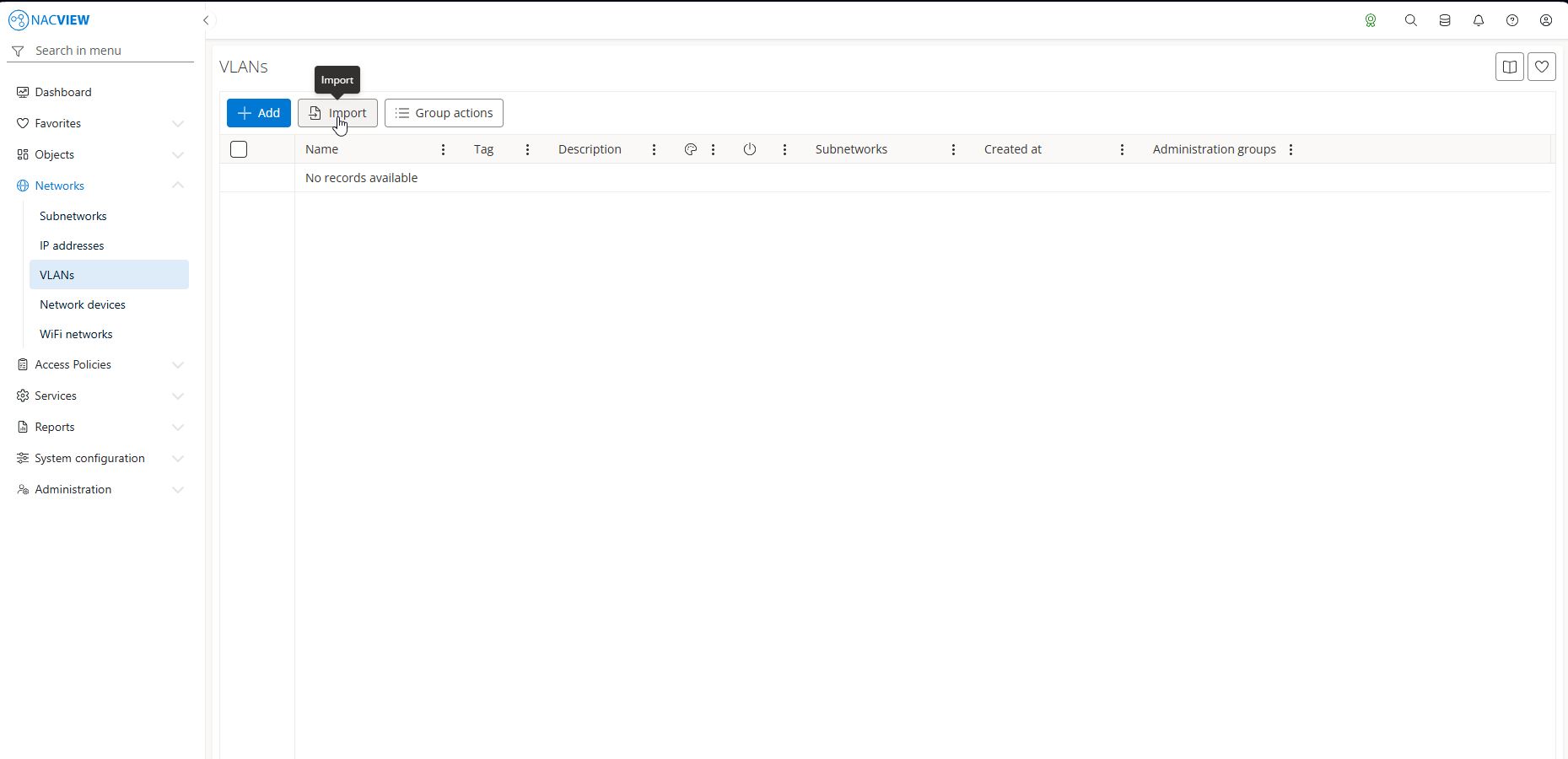
Initialize import
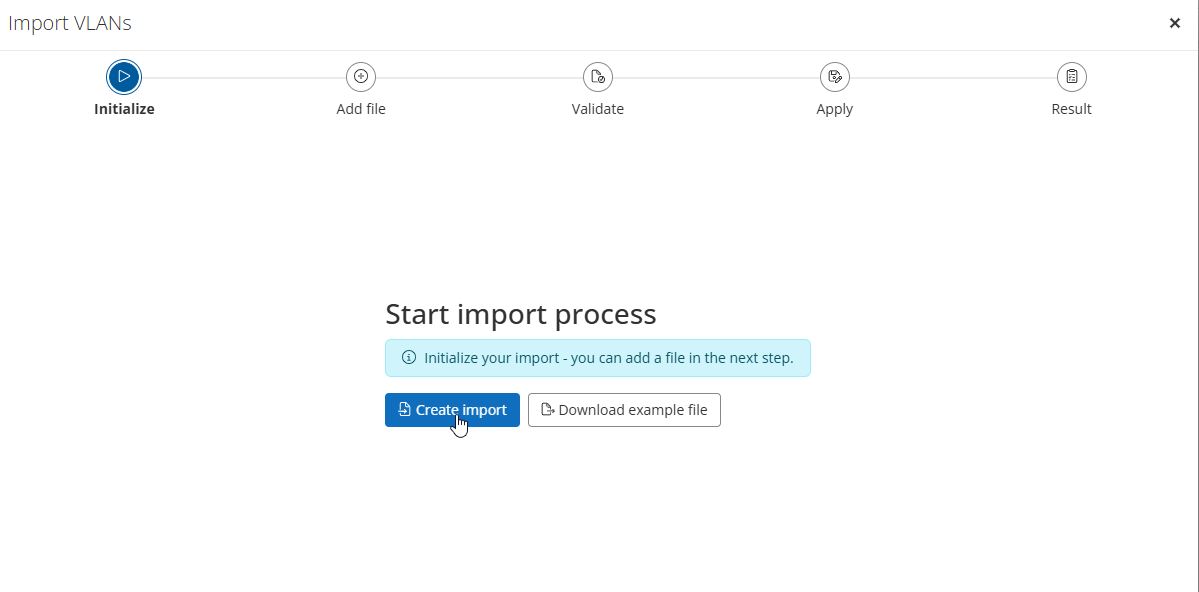
Create a new import action. At this point, the process is saved as a draft. You can safely leave and return to this draft later without losing your progress.
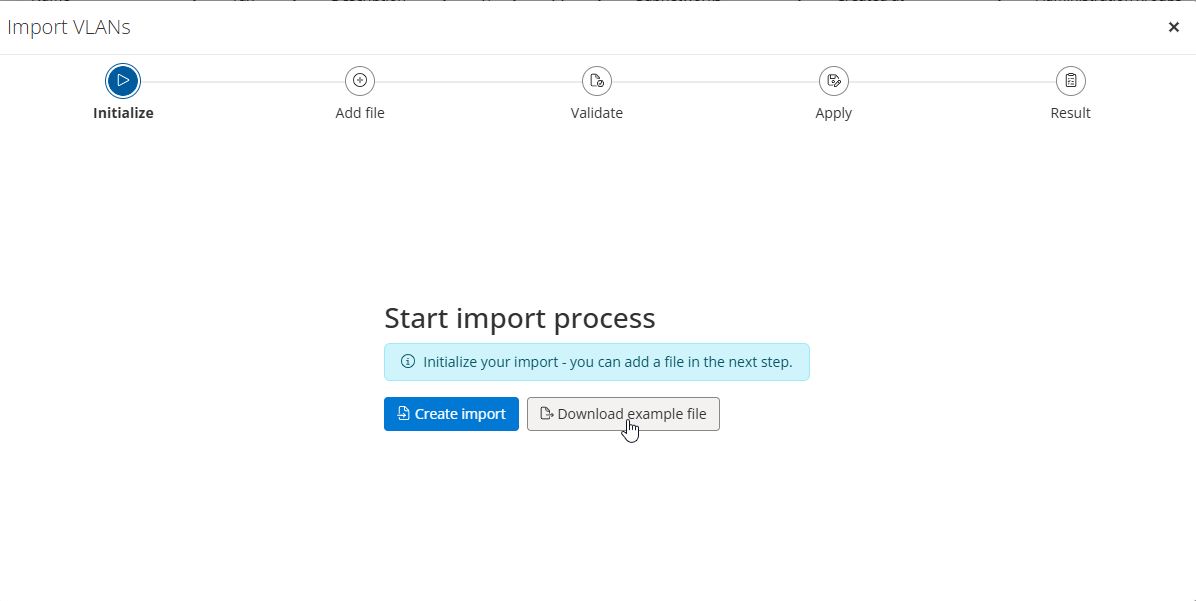
You can download example file with ‘Download example file’ button.
Upload and validate
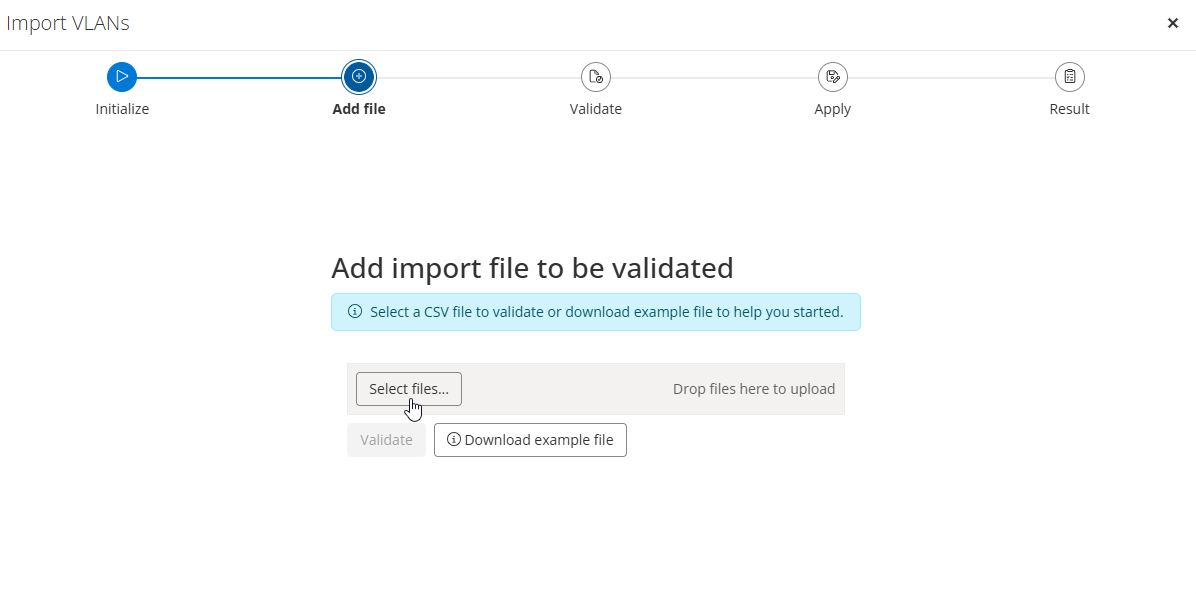
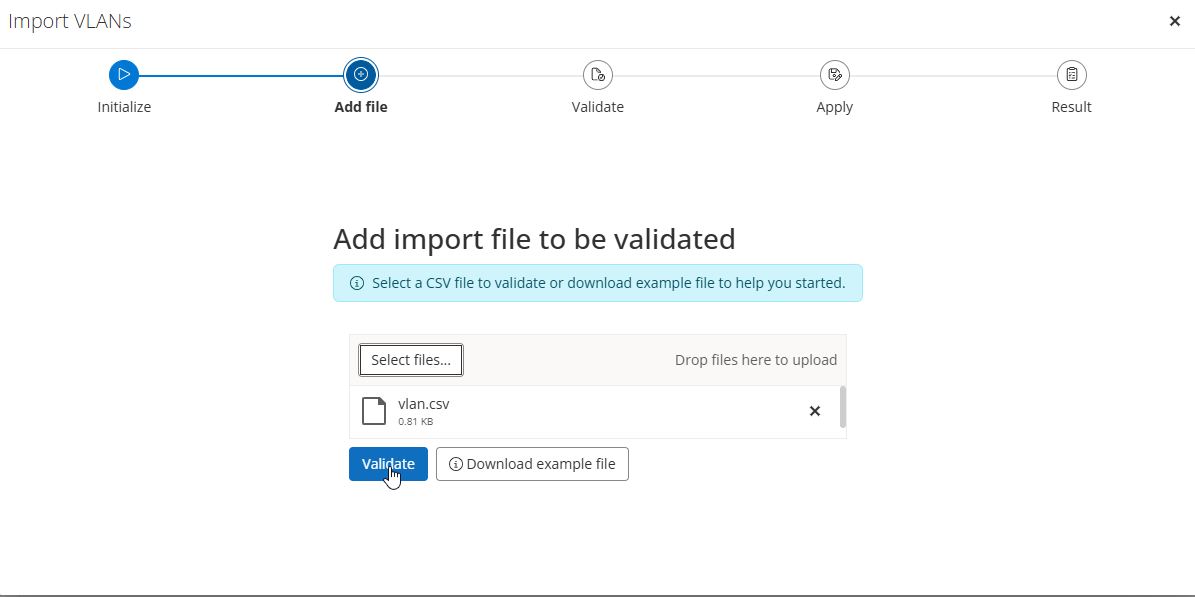
Select the prepared CSV file from your disk and trigger the “Validate” process. Validation runs asynchronously in the background. For massive datasets, this might take some time; the platform will push a system notification once evaluation is complete.
Review validation
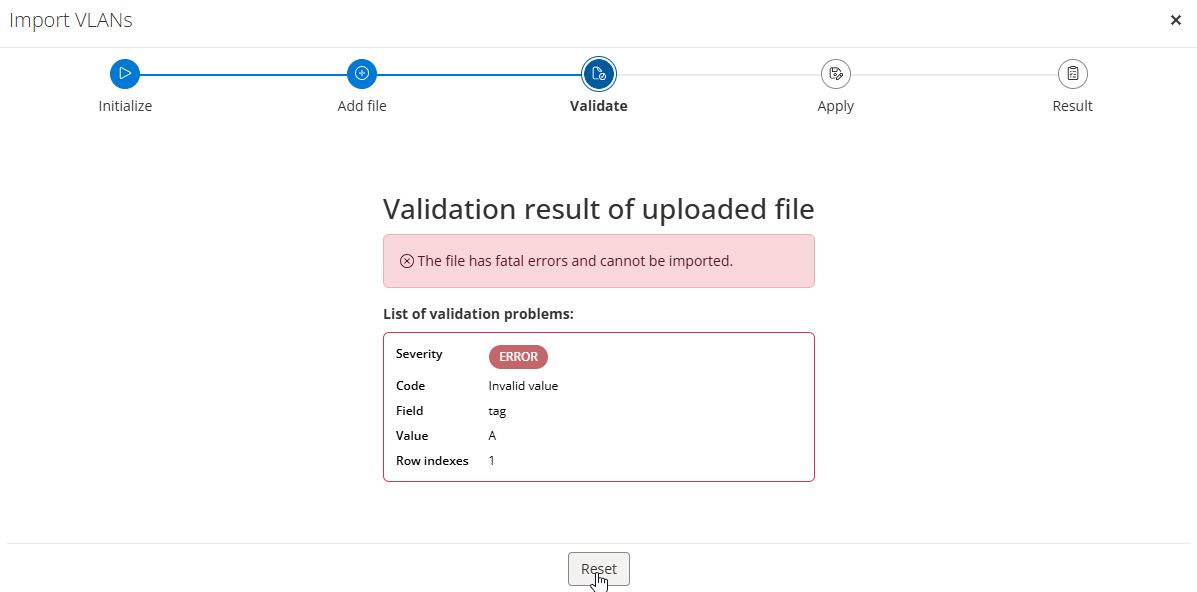
The system generates a comprehensive report flagging errors or warnings tied to specific CSV row numbers. If critical errors are found, use the “Reset” button to upload a corrected file.
Conflict resolution
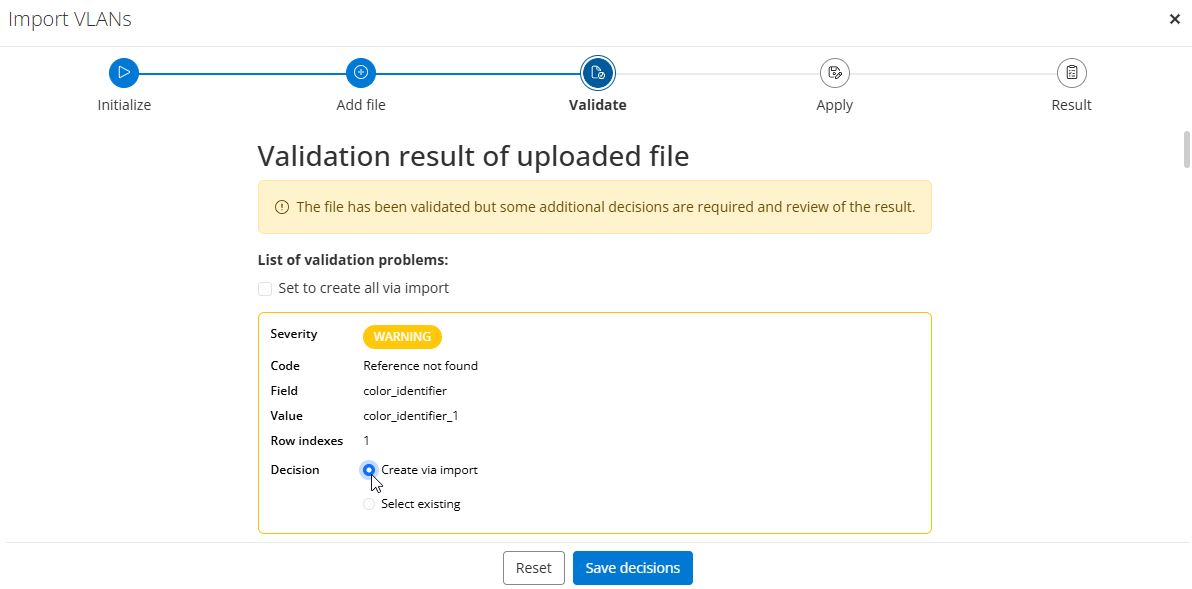
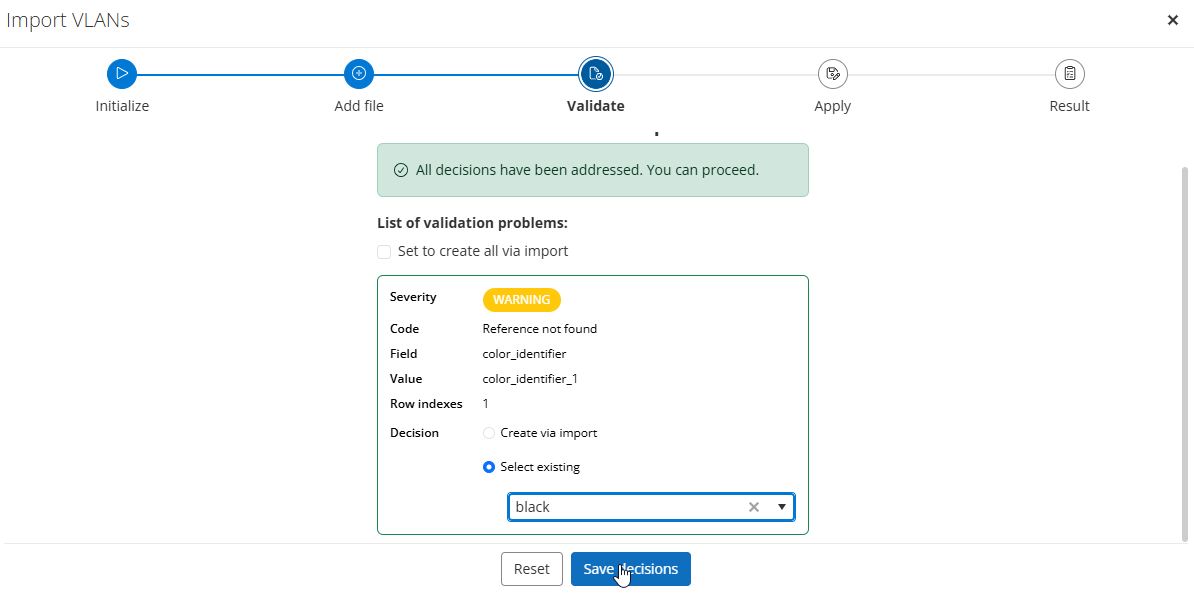
If the file is technically valid but references elements missing from the system (e.g., an unmapped administrative group or color), the wizard prompts for an explicit choice:
Create via import: Automatically provision the missing reference dynamically. It is possible to resolve problems one by one or select Set to create all via import to select all items.
Select existing: Manually map the reference to an already existing object within NACVIEW system.
Commit and Apply
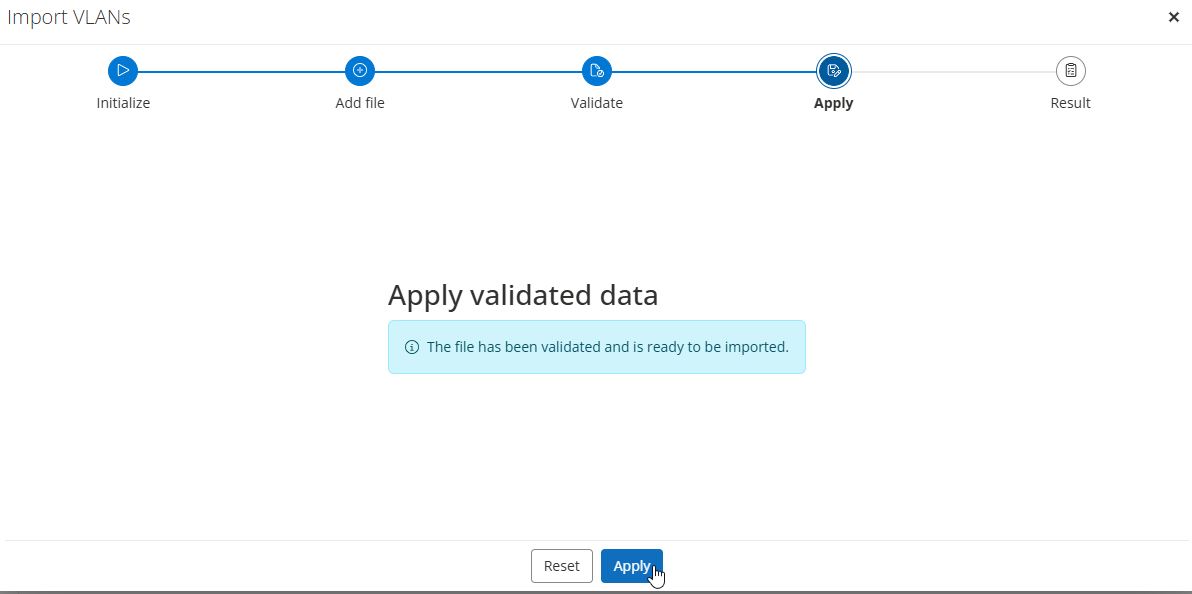
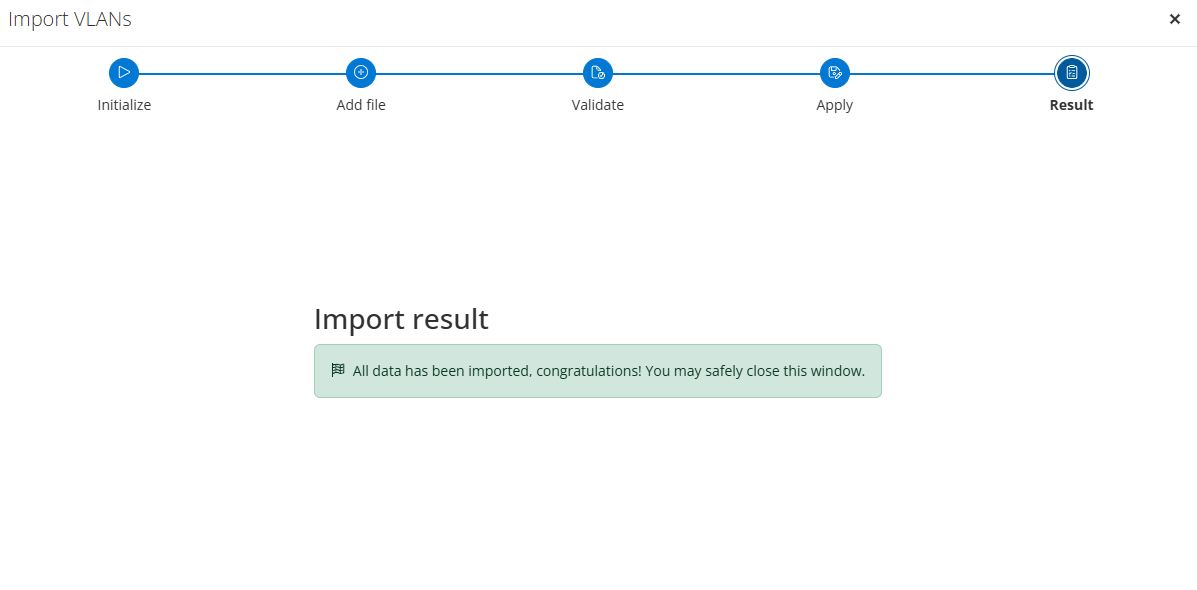
Once all validation blockers and unresolved references are handled, click “Apply”. The background process commits the records to the database and pushes a notification when completed.
Important
Administrators are advised to spot-check records in the target module and archive the CSV source file for internal auditing purposes.