User🔗
Introduction to User
This section provides information about Administration accounts, which are used to log in to the NACVIEW system and manage it. An Administration account is a term related to a single administrator (a person or a service) who has access to the NACVIEW management interface. In addition to its username, an administration account includes: personal data (name, surname, email, telephone number), an authorization server, enabled status, an optional description, an expiry date, external integration identifiers, security settings (External TACACS password, Yubi token, MFA required), and the date of the last login. All this information is important in the process of deciding who can log in to the NACVIEW system, how they are authenticated, and, through administration groups, what they are allowed to manage.
System context: Administration accounts are created individually (Add). By default, NACVIEW contains one built-in account, nvadmin, which cannot be deleted. Each account is authenticated by an authorization server (e.g. the local user database) and gains its permissions through membership in Administration groups.
Operational Example: A new network engineer joins the production IT team. An administrator creates an account for them with MFA required and an expiry date matching the end of their contract, and adds it to the Production Admins administration group. After logging in, the engineer can manage only the objects belonging to the Production sector, and the account is disabled automatically once the expiry date is reached.
Toolbar🔗
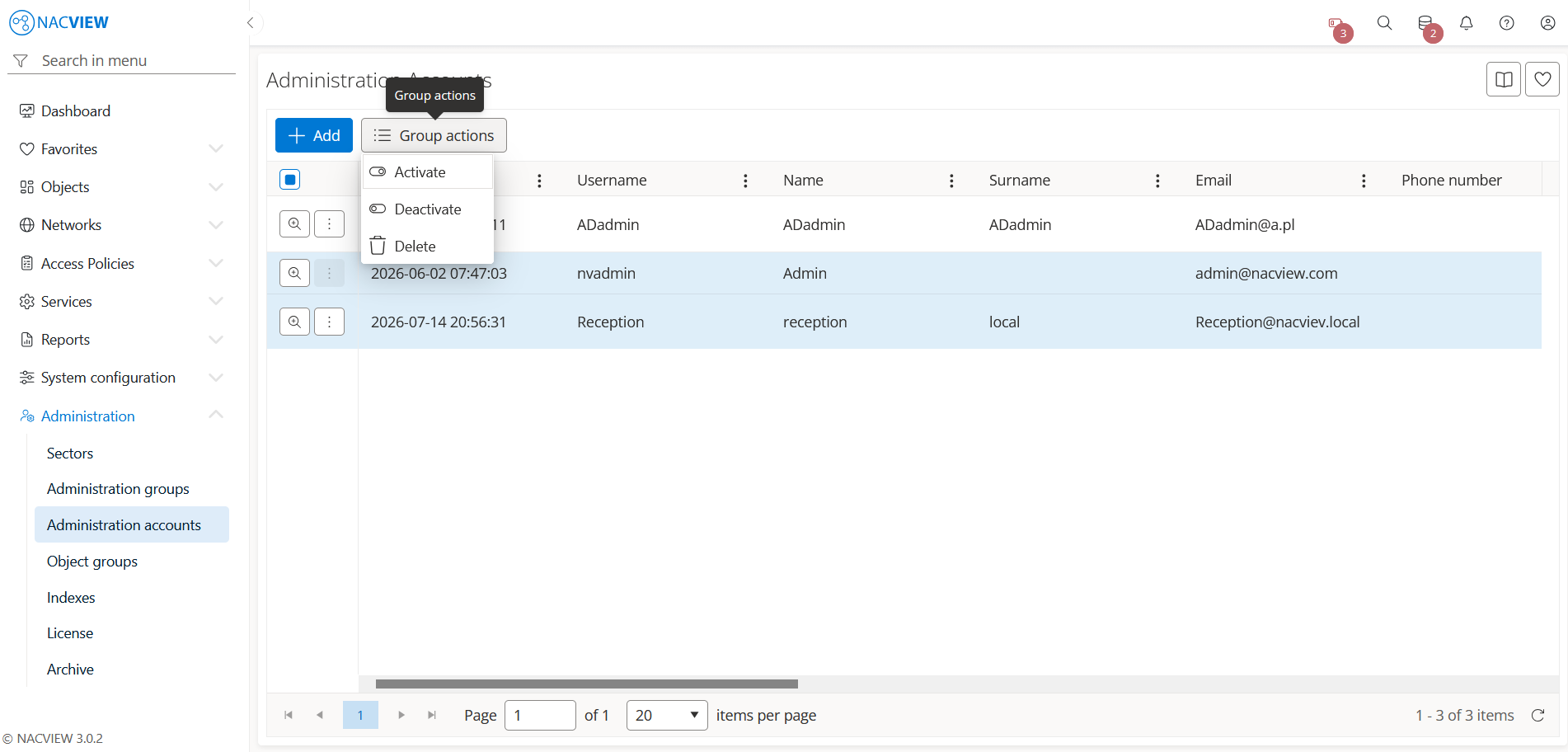
Add button is used to manually add a single new administration account.
Group actions button is used to perform an action on multiple selected administration
accounts at once. Administration accounts can be selected by holding the Ctrl or
Shift key while clicking. The available actions are: Activate, Deactivate, and Delete.
The administration account details panel🔗
The administration account details panel opens when a specific administration account is selected from the list (Details). It displays all information about the selected account in one place, in read-only mode. The top of the panel contains action buttons for the selected account (Edit, Mail, QR code, Archive), while below them the full set of the account’s attributes is shown, including creation and update data (Created by, Updated by), Authorization server, Username, Name, Surname, Email, Telephone number, Enabled status, Description, Expiry date, External integration ID, External integration UID, External TACACS password, Last login date, Yubi token, and MFA required.
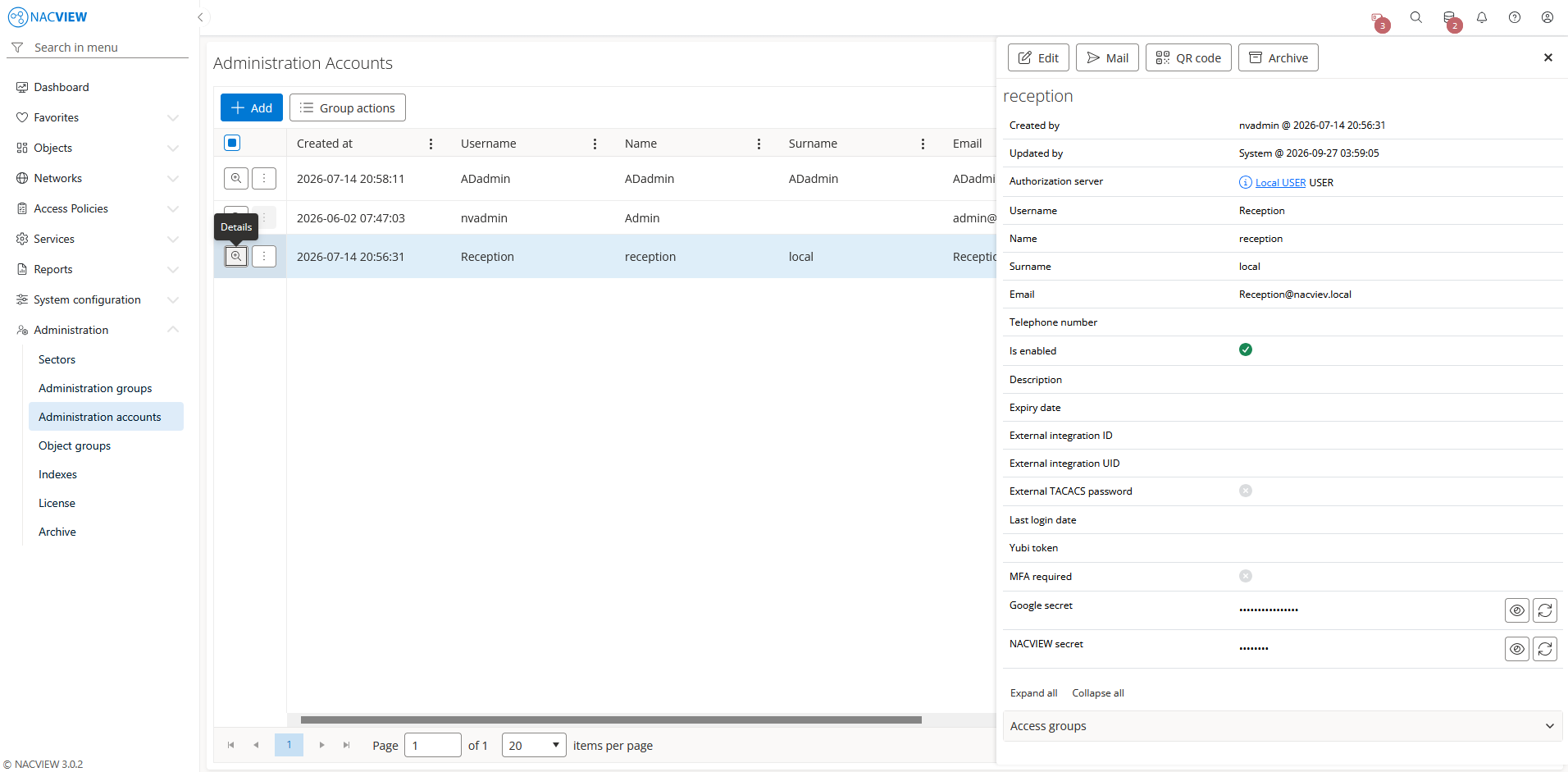
Edit button is used to edit the attributes of the selected administration account.
Mail button is used to send an email message with the account details to the email address of the selected administration account.
QR code button is used to display a QR code for the selected administration account, used to configure an authenticator application for multi-factor authentication (MFA).
Archive button is used to display the archive records related to the selected administration account, showing when each record was created, by whom, from which IP address, and the object name and type.
Panels🔗
The following expandable panels are available at the bottom of the right-hand side of the details view:
Administration groups - shows the administration groups this account is a member of.
See also
For instructions on how to configure administration accounts step by step, see Configuration Guides → Administration account configuration.