Endpoint device🔗
Introduction to Endpoint device
This section provides information about Endpoints (end devices), whose network access can be managed by the NACVIEW system. An Endpoint is a term related to a device that connects to the network - such as a computer, VoIP phone, printer, IP camera, or IoT device - extended with additional information related to that specific device. In addition to the name, this information includes: alternative name, authorization server, assigned Identity (owner), IP address, status, sector, device type, and other attributes. This information can be used in the process of deciding whether to grant the device access to the enterprise network.
System context: Endpoints can be created individually, imported in bulk from a CSV file into the local NACVIEW database, or defined on external servers and synchronised into NACVIEW. The list of endpoints can also be exported to a file (Export). NACVIEW can also register Endpoints automatically when a previously unknown device connects to the network (auto-registration), and profile them - classifying them by device type, operating system, and manufacturer - using methods such as DHCP Fingerprinting, HTTP/S, NMAP, DNS, and RADIUS. There are two types of Endpoints: Standard (locally defined) and External (synchronised from external databases). Similar Endpoints can be grouped (e.g. printers, IP cameras, VoIP phones, or corporate laptops). Groups are created in Administration > Object groups. Each Endpoint is linked to one or more MAC addresses, which are managed as separate objects in Objects > MAC addresses. Endpoints can be assigned to an Identity - indicating the user who owns or uses the device - and to Organizational units. New local Organizational units are created in Objects > Organizational units. Groups of Endpoints can then be used to create access policies (e.g. a MAB policy for all IP cameras).
Operational Example: When a VoIP phone that does not support 802.1X connects to the corporate network, NACVIEW identifies it by its MAC address (MAB), checks it against the Endpoint group defined for phones, and grants access to the voice VLAN assigned to that group of devices.
Toolbar🔗
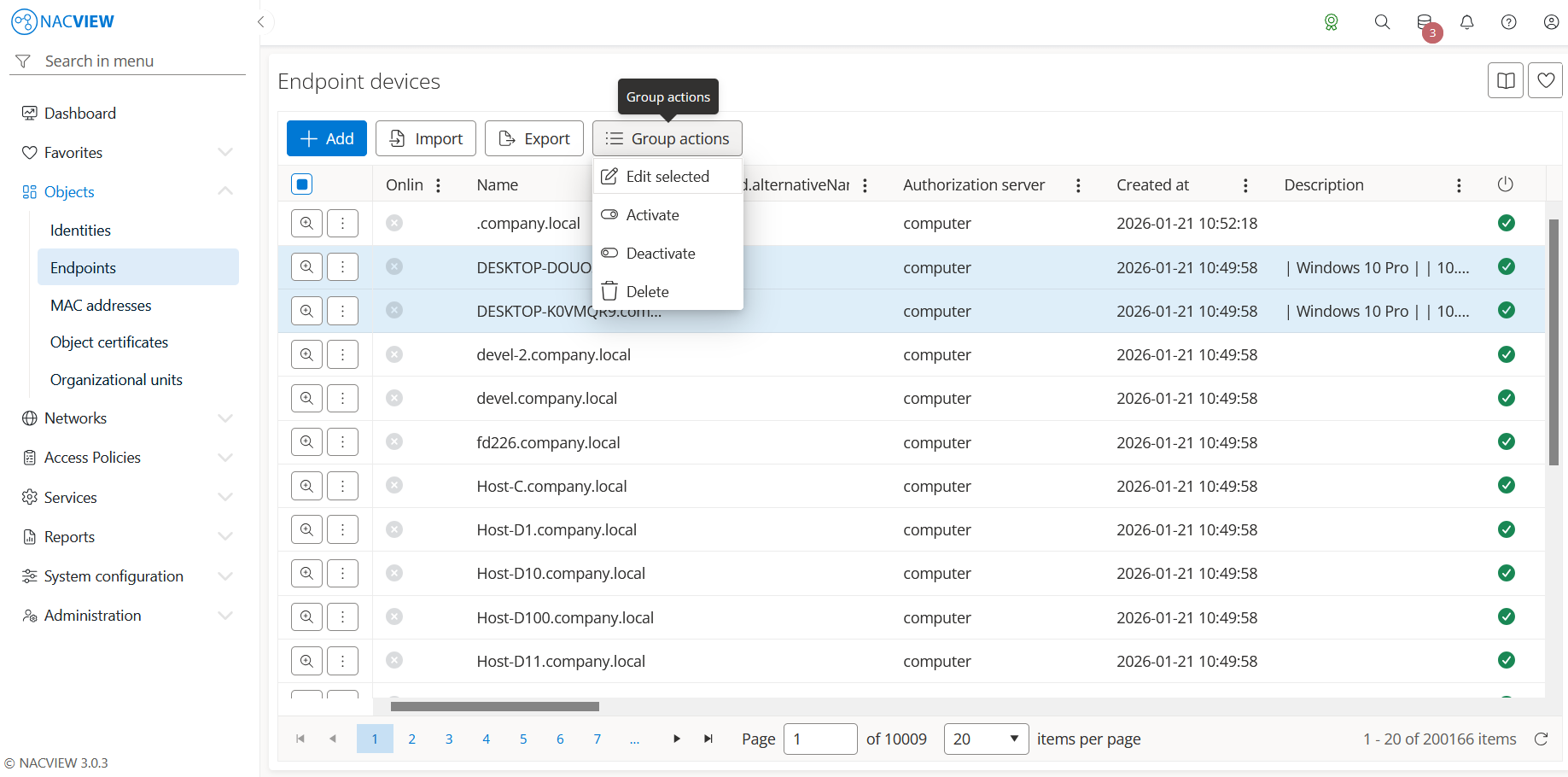
Add button is used to manually add a single new endpoint device.
Import button is used to import multiple endpoints from a CSV file into the local NACVIEW database.
Export button is used to export the list of endpoints from the NACVIEW database to a file.
Group actions button is used to perform an action on multiple selected
endpoints at once. Endpoints can be selected by holding the Ctrl or Shift
key while clicking. The available actions are: Edit selected, Activate, Deactivate,
and Delete.
The endpoint details panel🔗
The endpoint details panel opens when a specific endpoint is selected from the list (Details). It displays all information about the selected device in one place, in read-only mode. The top of the panel contains action buttons for the selected endpoint (Edit, Certificates, Details, Archive), while below them the full set of the endpoint’s attributes is shown, including creation and update data (Created by, Updated by), identification data (Name, Alternative name), information about its link to an external authorization server (Authorization server, External integration ID/UID), the description, the status (Is enabled, Online), the assigned Identity (owner), network data (IP address), additional custom attributes (Custom 1-4), the Sector, the device Type (e.g. PHONE), monitoring settings (Monitoring, Credential monitoring), inventory data (Inventory number, Serial number), Auth validate, LAPS, Scout agent data (Scout moderated, Scout API token, Scout API user, Scout OS, Scout right, Scout status, Scout updated at), and the Organizational unit.
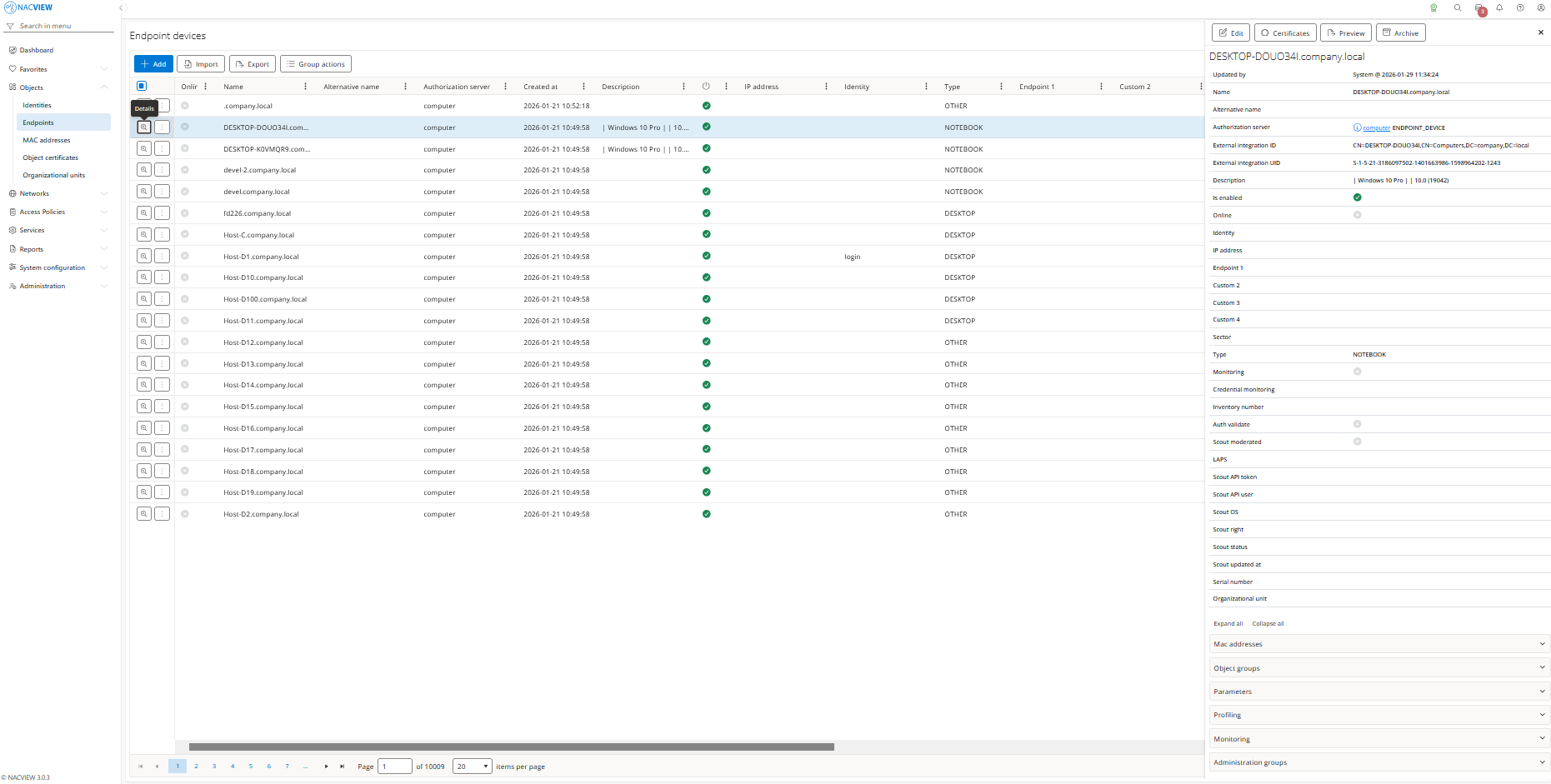
Edit button is used to edit the attributes of the selected endpoint.
Certificates button is used to manage the certificates assigned to the selected endpoint.
Note
Object certificates assigned to endpoints can be defined in Objects > Object certificates.
Preview button is used to open the view with detailed information about the selected endpoint.
Archive button is used to display the archive records related to the selected endpoint, showing when each record was created, by whom, from which IP address, and the object name and type.
Panels🔗
The following expandable panels are available at the bottom of the right-hand side of the details view:
Mac addresses - shows the MAC addresses linked to this endpoint device.
Object groups - shows the object groups to which this endpoint device belongs.
Parameters - shows the additional parameters defined for this endpoint device.
Profiling - shows the profiling information collected for this endpoint device.
Monitoring - shows the monitoring information for this endpoint device.
Administration groups - shows the administration groups allowed to manage this endpoint device.
See also
For instructions on how to configure endpoints step by step, see Configuration Guides → Endpoint configuration.