Import to XCP-ng🔗
NV3 was tested on XCP-ng version 8.3.0, although it should work without problems on any other XCP-ng version which is supported by the manufacturer.
Prerequisites🔗
Easiest way to import NACVIEW to the XCP-ng is to use XOA appliance.
Requirements for virtal machine are listed here.
Download of image🔗
Download image from here.
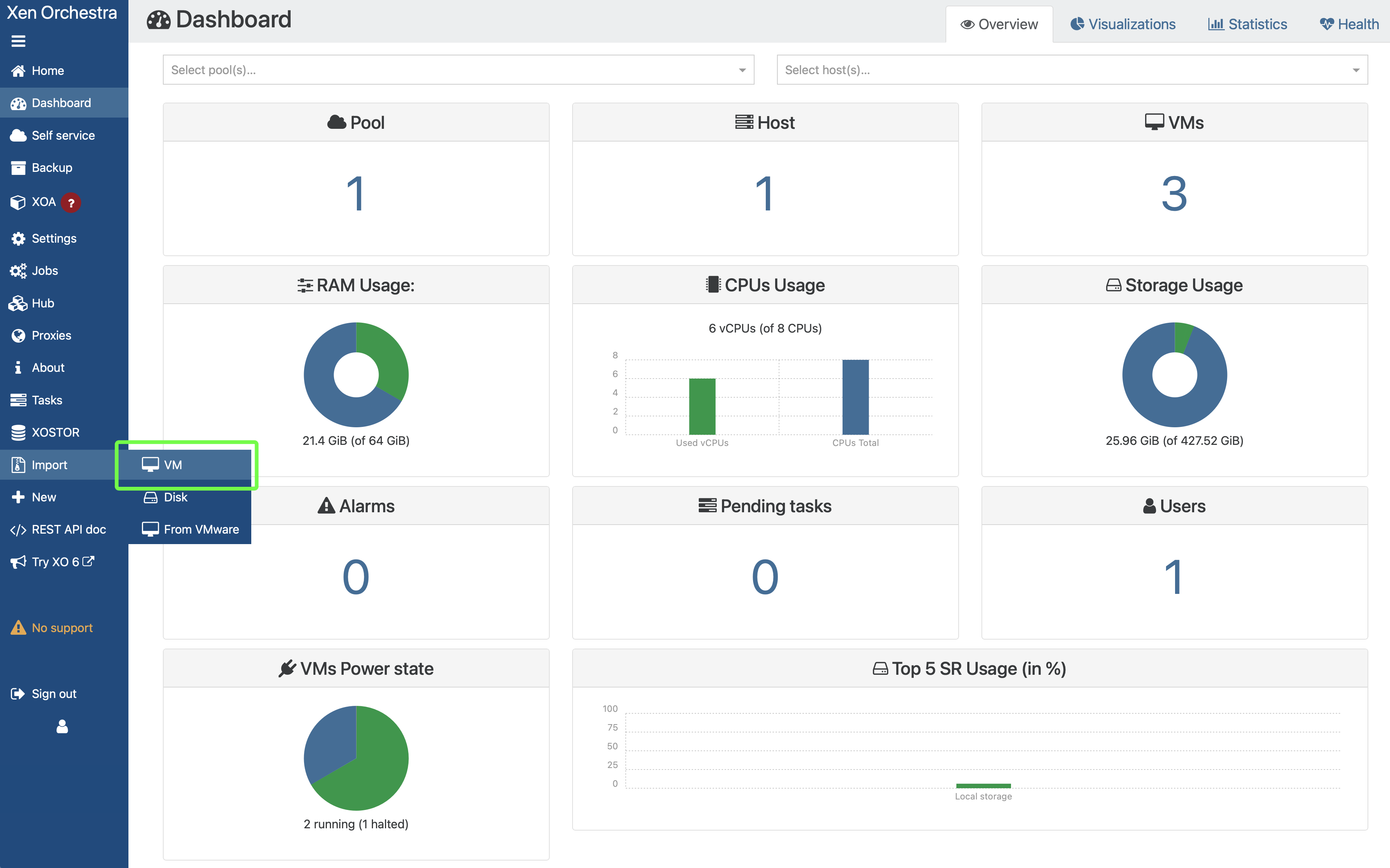
Log in to XOA. From the menu on the left, select *Import* and then *VM*.
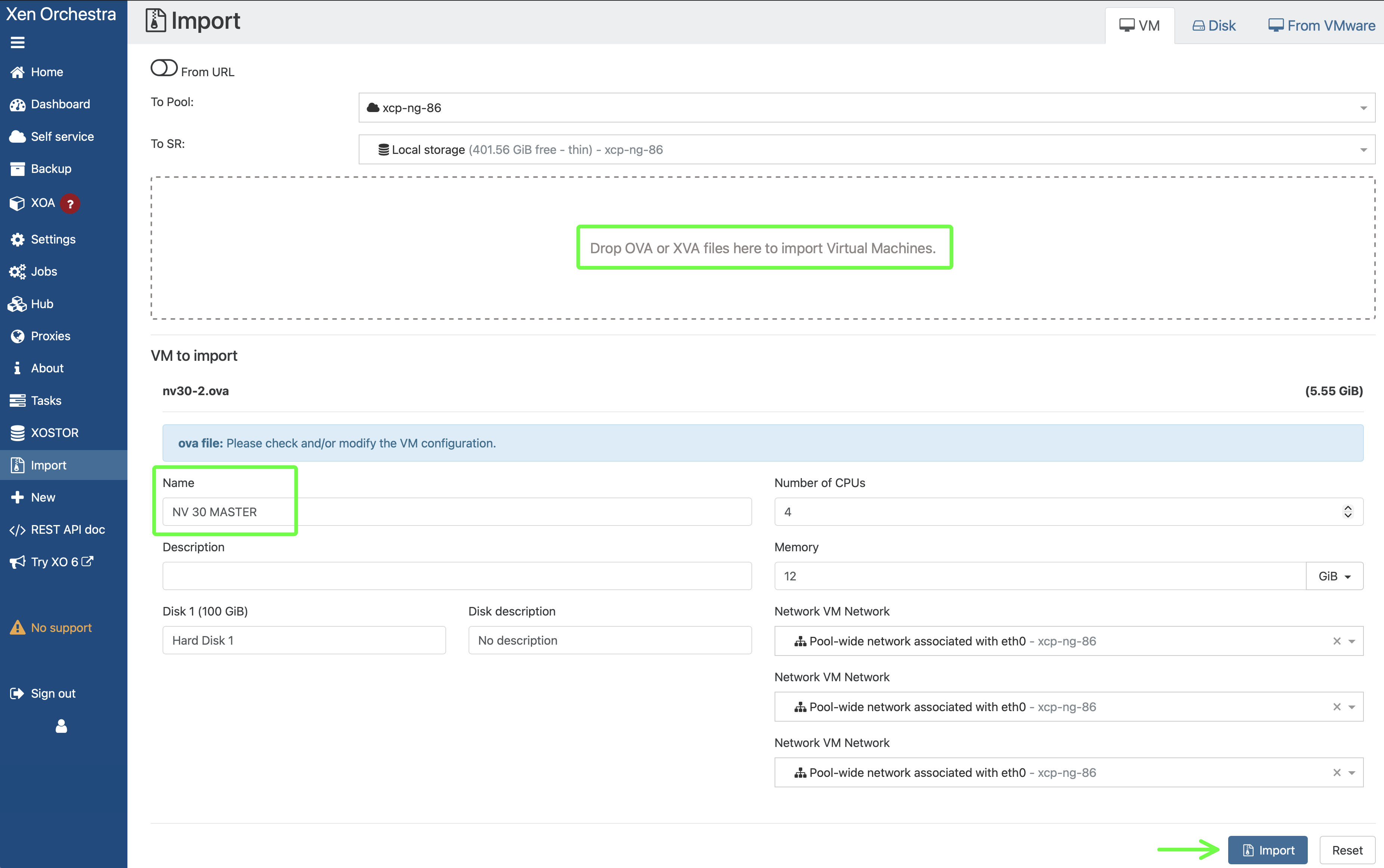
Upload the NACVIEW image to XOA, set the Name. Adjust the amount of RAM and vCPU and connect the network interfaces to the appropriate networks on XCP-ng.
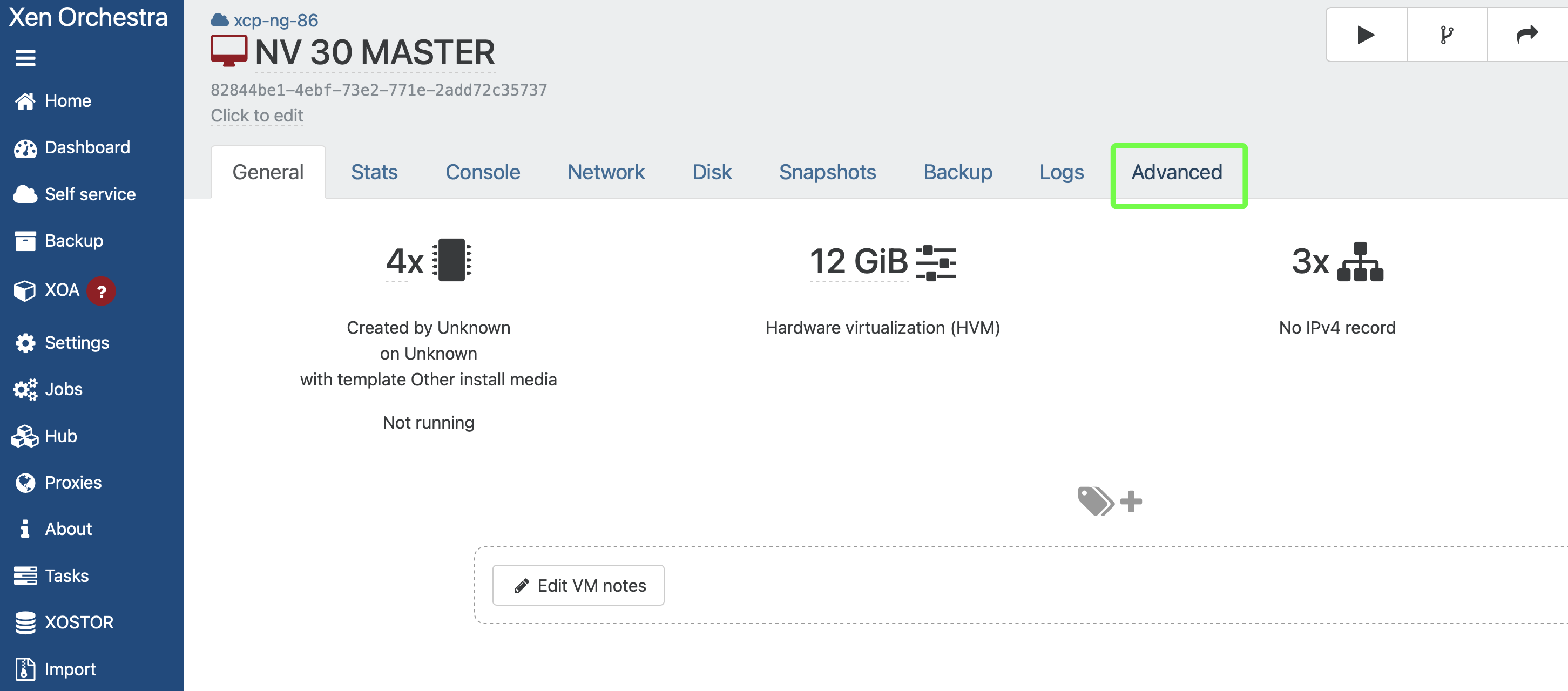
After the import is complete, XOA will automatically switch to the virtual machine view. Do not start the VM yet. Go to the virtual machine settings in the *Advanced* tab.
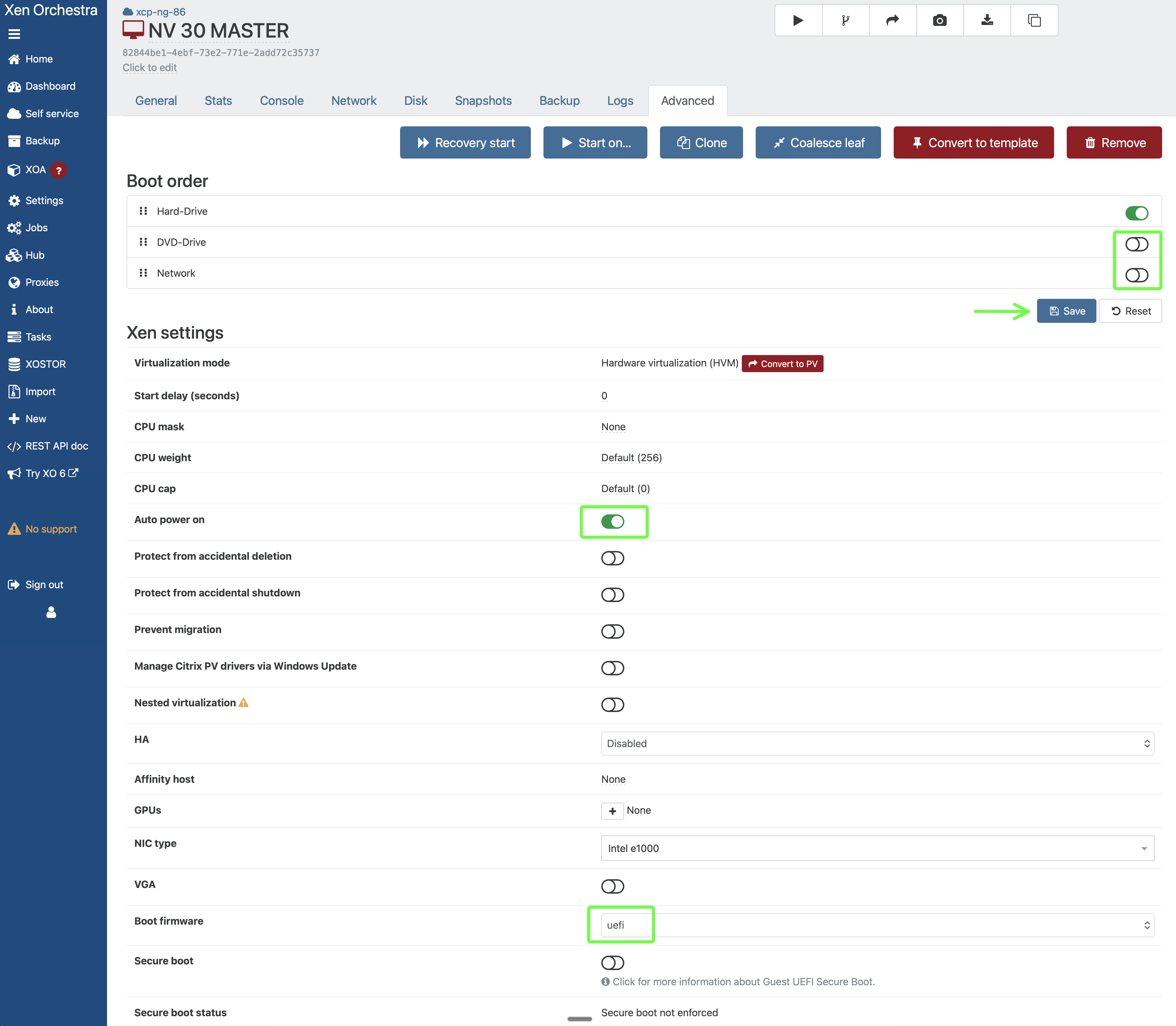
5. Modify the virtual machine configuration by disabling the *Network* and *DVD-Drive* options in the *Boot order* section. In the *Xen settings* section, change the following options: *Boot firmware* to uefi (this is important). Set Auto power on, optionally (but also recommended) *Protect from accidental deletion* and also: *Protect from accidental shutdown*. Do not forget to save the new settings by clicking the Save button.
Go to the *Console* tab now and start the virtual machine. The NACVIEW system should start up.