Network device🔗
Introduction to Network device
This section provides information about Network devices, the network infrastructure devices (such as switches and controllers) whose connectivity, credentials and monitoring are managed by the NACVIEW system. A Network device is a term related to a physical or virtual network infrastructure device, extended with additional information related to that specific device. In addition to its name and type, this information includes: its IP address, device credentials used to connect to it, monitoring and connectivity status (PING, SNMP, CLI, HTTP, RADIUS, SYSLOG), its firmware, and the object groups and sector it belongs to. All this information is important in the process of managing and monitoring the devices that make up the enterprise network infrastructure.
System context: Network devices can be created individually (Add) or imported in bulk from a CSV file (Import). Each device has a Type (e.g. Network device) and can be linked to a Device credential used for authenticating to it, and to a Reauth device credential used for periodic reauthentication. Devices can be organized into Sectors and Object groups, and can be linked to other devices they control (Controlled network devices).
Operational Example: When a network device (e.g. a switch) is correctly configured and properly added to NACVIEW, with all its parameters set correctly (IP address, Device credential, and the connectivity and integration methods such as PING, SNMP, CLI, HTTP, RADIUS, and SYSLOG), NACVIEW grants or denies network access to the endpoint device attempting to connect through it, in accordance with the defined access policies.
Toolbar🔗
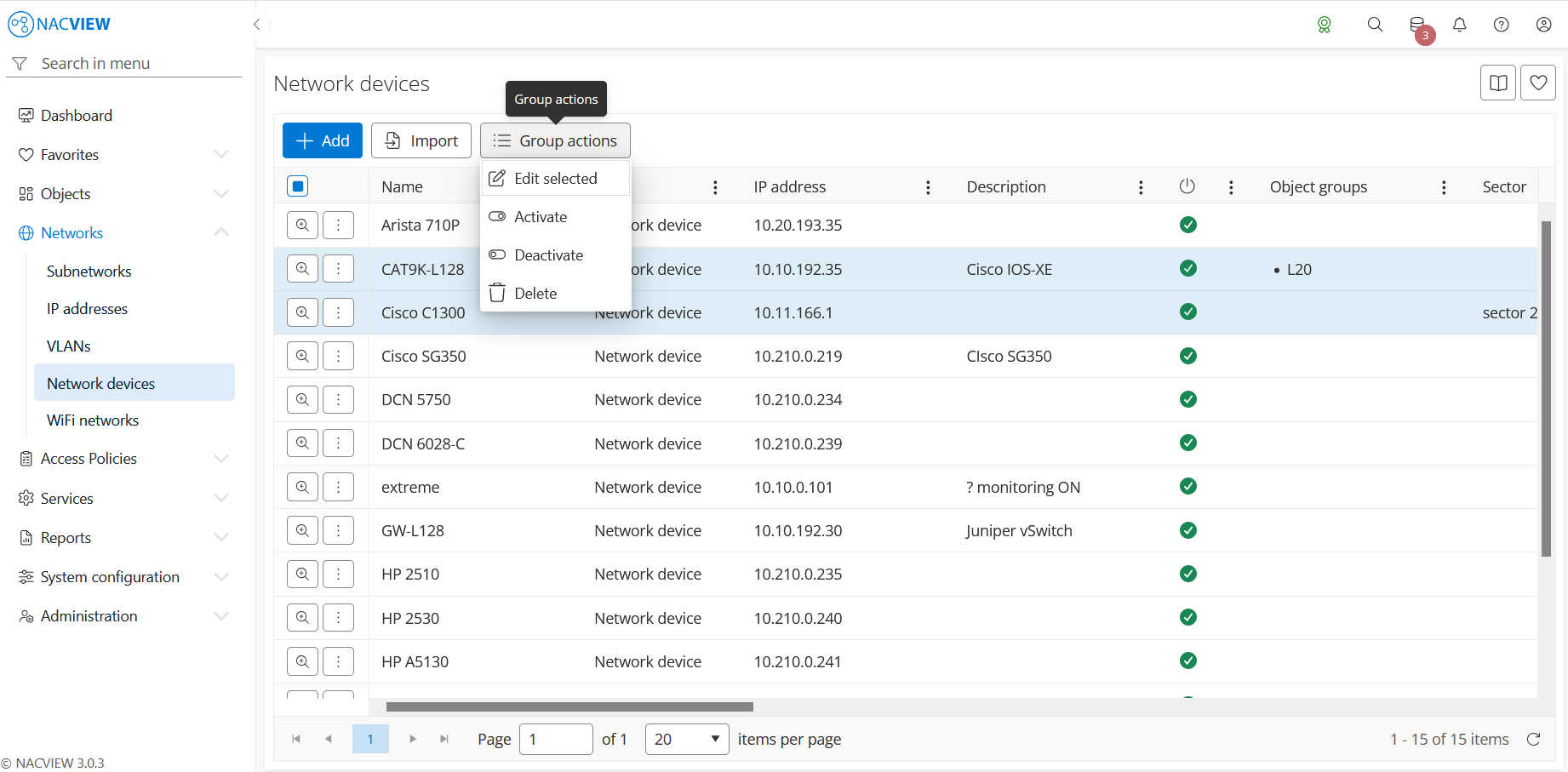
Add button is used to manually add a single new network device.
Import button is used to import multiple network devices into the local NACVIEW database, e.g. from a CSV file.
Group actions button is used to perform an action on multiple selected network devices at
once. Devices can be selected by holding the Ctrl or Shift key while clicking. The
available actions are: Edit selected, Activate, Deactivate, and Delete.
The network device details panel🔗
The network device details panel opens when a specific device is selected from the list (Details). It displays all information about the selected device in one place, in read-only mode. The top of the panel contains action buttons for the selected device (Edit, Device details, Port, and Configuration, with SSH console, Monitoring, Custom commands, Clone, and Archive available under the more options menu), along with status indicators for PING, SNMP, CLI, HTTP, RADIUS, and SYSLOG connectivity, and a refresh button used to re-check these statuses. Below them, the full set of the device’s attributes is shown, including creation and update data (Created by, Updated by), Name, Enabled status, Description, Type, Number of ports, IP address, Device credential, Device credential monitoring, Reauth device credential, Radius secret, TACACS secret, Firmware, Monitoring, Sector, Show label, Main controller, and Download interval.
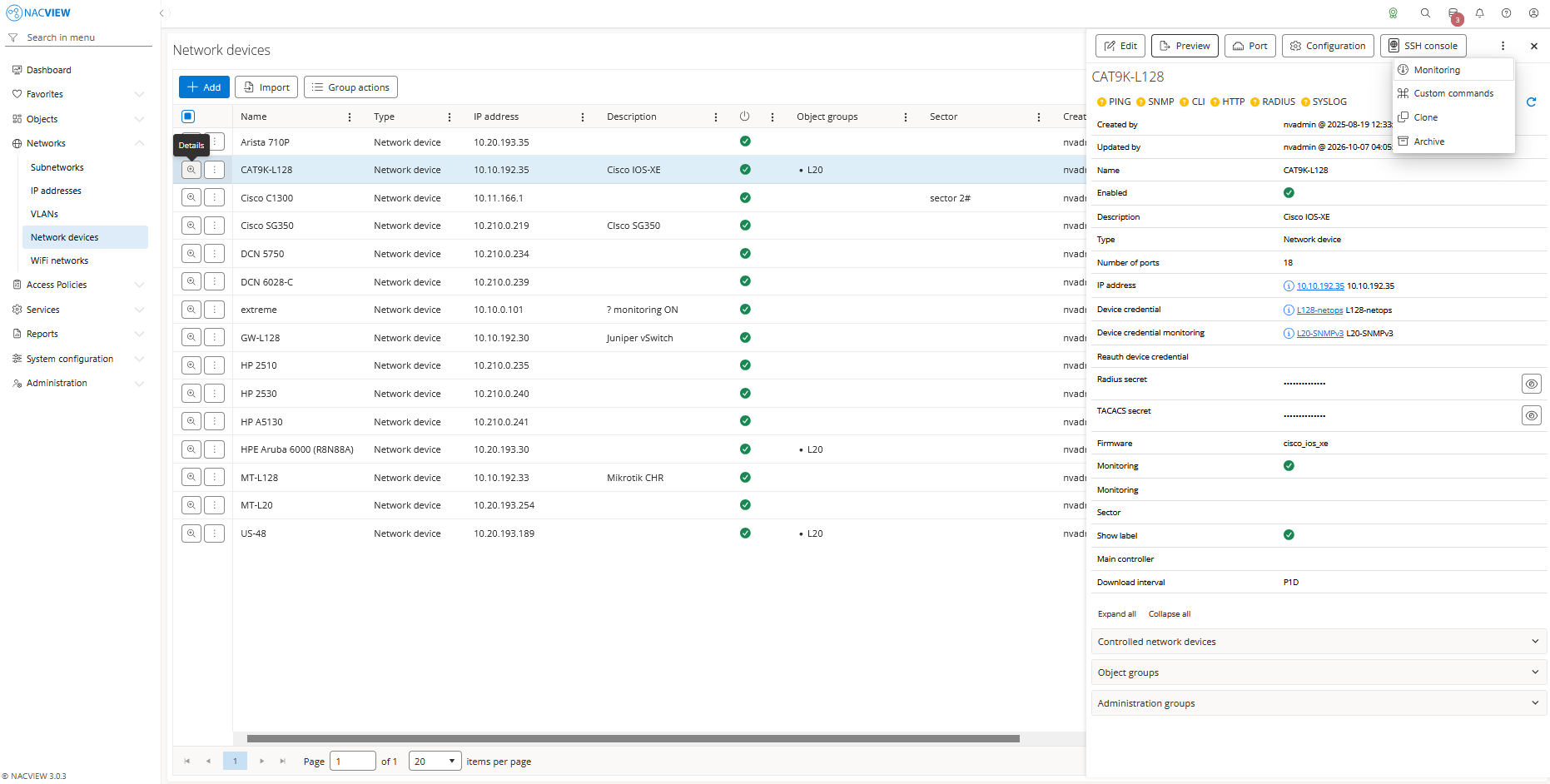
Edit button is used to edit the attributes of the selected network device.
Preview details button is used to open the view with detailed information about the selected network device.
Configuration button is used to open the configuration view for the selected network device, where the current configuration can be compared against a historical version in change-tracking mode.
SSH console button is used to open an SSH console session to the selected network device.
Port button is used to open the list of physical ports for the selected network device. From this list, group actions can be performed on multiple selected ports at once. Each port entry shows its configuration, including type, purpose, RADIUS/SNMP/Telnet names, traffic overload thresholds, and associated VLANs (Untagged Vlan, Vlan voice, Tagged Vlans), and can be edited individually. Selecting a specific port opens its details panel, where Monitoring and Archive information for that port can also be viewed.
Monitoring button is used to open the SNMP-based monitoring view for the selected network device.
Clone button, available from the more options menu, is used to create a copy of the selected network device.
Custom commands button, available from the more options menu, is used to run or manage custom commands on the selected network device.
Archive button, available from the more options menu, is used to display the archive records related to the selected network device, showing when each record was created, by whom, from which IP address, and the object name and type.
Panels🔗
The following expandable panels are available at the bottom of the right-hand side of the details view:
Controlled network devices - shows the network devices controlled by this device.
Object groups - shows the object groups to which this network device belongs.
Administration groups - shows the administration groups allowed to manage this network device.
See also
For instructions on how to configure network devices step by step, see Configuration Guides → Network device configuration.