Organizational unit🔗
Introduction to Organizational unit
This section provides information about Organizational units, which are used by the NACVIEW system to reflect the organizational structure of the enterprise and to group Identities and Endpoint devices. An Organizational unit (OU) is a container that corresponds either to a unit synchronised from an external directory (e.g. an Active Directory OU or container) or to a locally defined unit. In addition to the name, this information includes: description, authorization server, parent unit, external integration identifiers, status, and the objects assigned to the unit. All this information can be used when building access policies based on the organizational structure.
System context: Organizational units can be defined locally in NACVIEW or synchronised from an external authorization server (e.g. Active Directory). Synchronised units keep their original directory path in the External integration ID field (for example, OU=Computers, DC=ad-22, DC=trn), and NACVIEW records when their data last changed on the external server (External auth change date). Organizational units form a tree structure - each unit can have a Parent unit, which allows the enterprise hierarchy to be reproduced in NACVIEW. Identities and Endpoint devices can belong to an Organizational unit, either because they were synchronised together with it from the external database, or because they were assigned to a local one. New local Organizational units are created using the Add button. Organizational units can then be used to create access policies (e.g. a policy for all devices in the “Computers” unit).
Operational Example: When a computer that belongs to the “Computers” organizational unit synchronised from Active Directory connects to the network, NACVIEW recognises the unit it belongs to and applies the access policy defined for that organizational unit.
Toolbar🔗
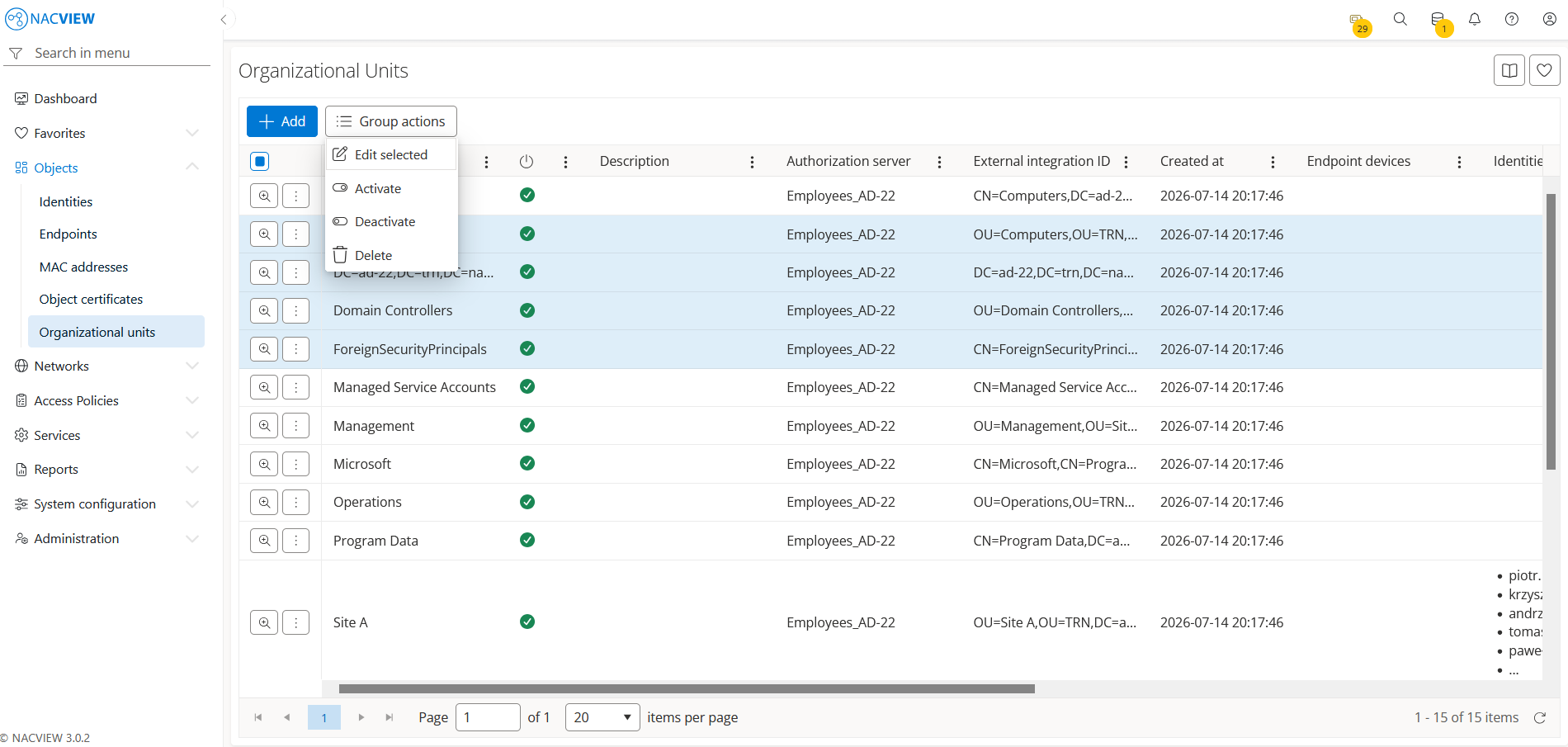
Add button is used to manually add a single new local organizational unit.
Group actions button is used to perform an action on multiple selected
organizational units at once. Organizational units can be selected by holding the
Ctrl or Shift key while clicking. The available actions are: Edit
selected, Activate, Deactivate, and Delete.
The organizational unit details panel🔗
The organizational unit details panel opens when a specific organizational unit is selected from the list. It displays all information about the selected unit in one place, in read-only mode. The top of the panel contains action buttons for the selected unit (Edit, Archive), while below them the full set of the unit’s attributes is shown, including update data (Updated by), the Name, the status (Enabled), the description, information about its link to an external authorization server (Authorization server, External integration ID/UID, External auth change date), the Parent unit, and the Symbol.
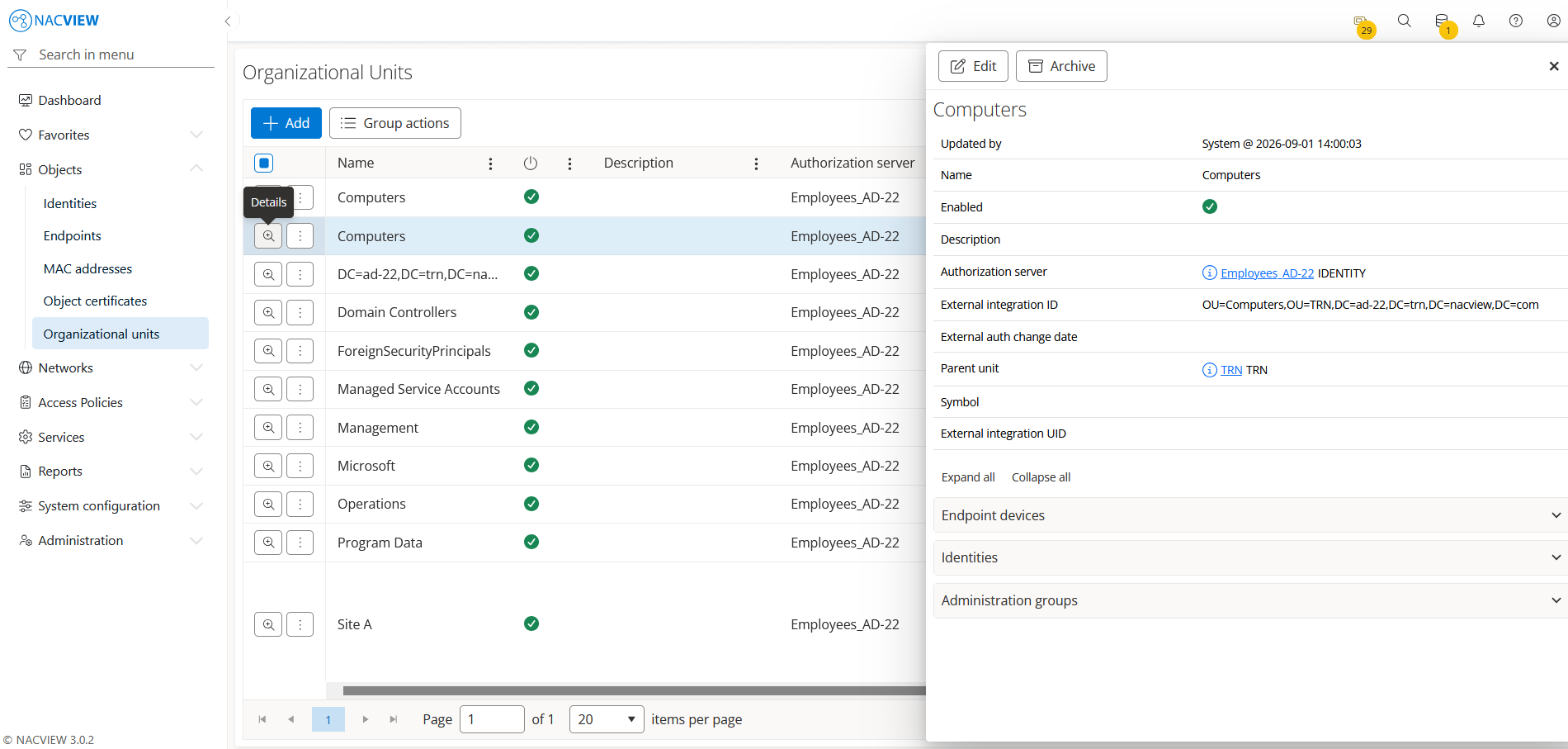
Edit button is used to edit the attributes of the selected organizational unit.
Archive button is used to display the archive records related to the selected organizational unit, showing when each record was created, by whom, from which IP address, and the object name and type.
Panels🔗
The following expandable panels are available at the bottom of the right-hand side of the details view:
Endpoint devices - shows the endpoint devices assigned to this organizational unit.
Identities - shows the identities assigned to this organizational unit.
Administration groups - shows the administration groups that can manage this organizational unit.
See also
For instructions on how to configure organizational units step by step, see Configuration Guides → Organizational unit configuration.