DHCP whitelist🔗
Introduction to DHCP whitelist
A DHCP whitelist links a MAC address object group to a specific IP address object group: devices whose MAC address belongs to the whitelisted group are assigned an IP address from that linked IP address group. Multiple such whitelists can be defined, allowing different MAC address groups to be assigned addresses from different IP address groups.
Toolbar🔗
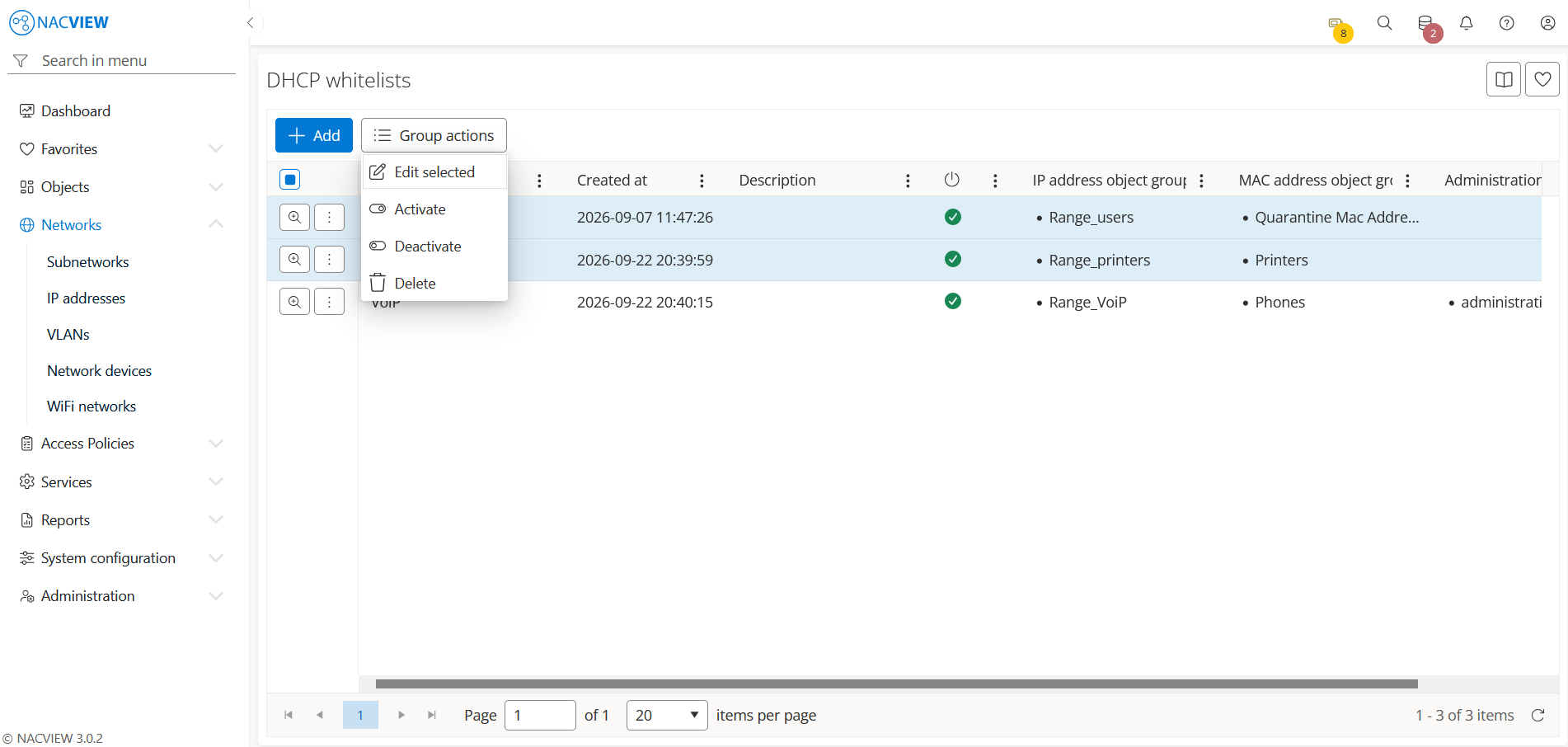
Add button is used to manually add a single new DHCP whitelist.
Group actions button is used to perform an action on multiple selected DHCP whitelists at
once. DHCP whitelists can be selected by holding the Ctrl or Shift key while
clicking. The available actions are: Edit selected, Activate, Deactivate, and Delete.
The DHCP whitelist details panel🔗
The DHCP whitelist details panel opens when a specific DHCP whitelist is selected from the list (Details). It displays all information about the selected DHCP whitelist in one place, in read-only mode. The top of the panel contains action buttons for the selected DHCP whitelist (Edit and Archive), while below them the full set of the DHCP whitelist’s attributes is shown, including identification data (Name, Description) and status (Is enabled).
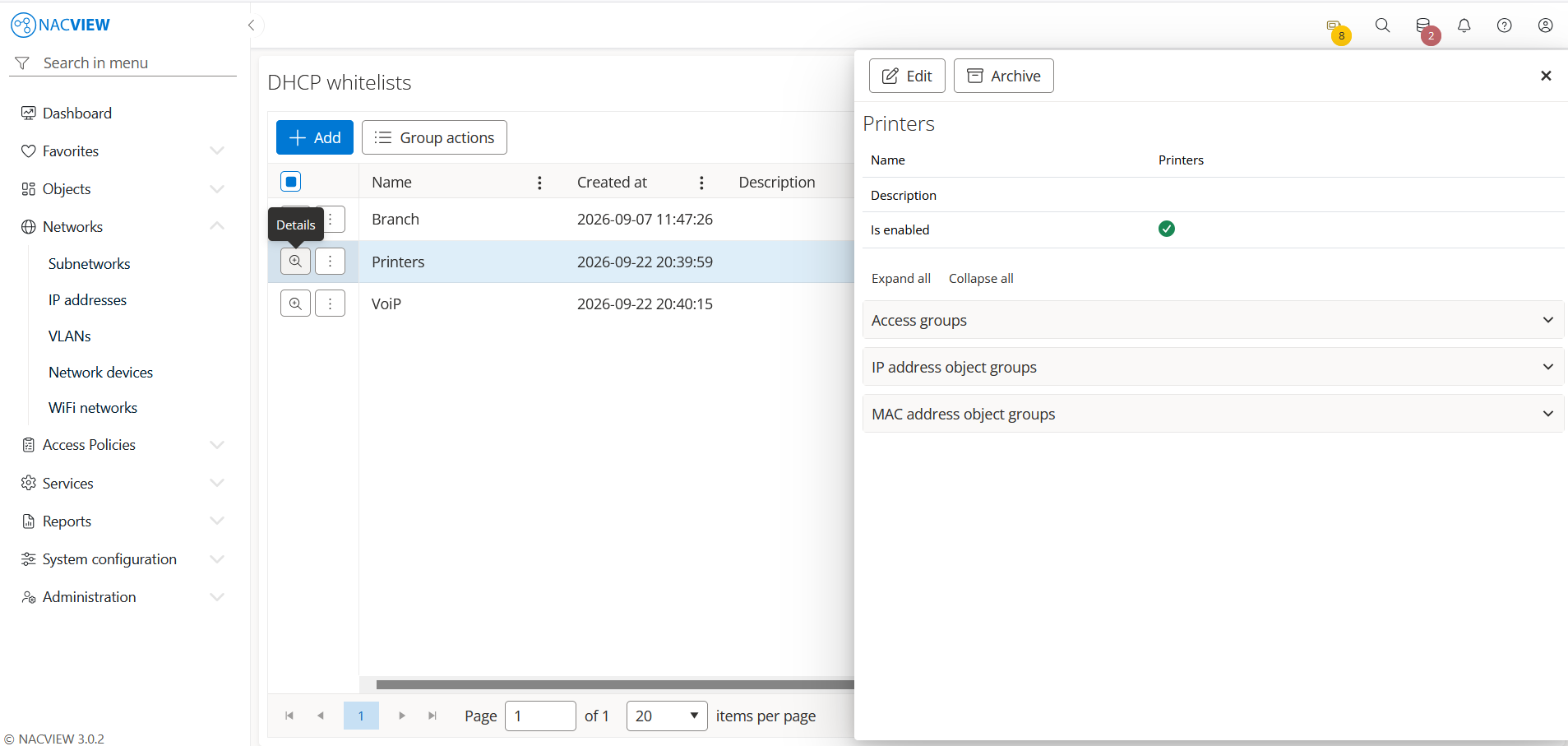
Edit button, available from the more options menu, is used to edit the attributes of the selected DHCP whitelist.
Archive button, available from the more options menu, is used to display the archive records related to the selected DHCP whitelist, showing when each record was created, by whom, from which IP address, and the object name and type.
Panels🔗
The following expandable panels are available at the bottom of the right-hand side of the details view:
IP address object groups - shows the IP address object groups linked to this DHCP whitelist.
MAC address object groups - shows the MAC address object groups linked to this DHCP whitelist.
Administration groups - shows the administration groups allowed to manage this DHCP whitelist.