IP address🔗
Introduction to IP address
This section provides information about IP addresses, the individual addresses within a subnetwork’s range whose type, purpose and DNS behaviour are managed by the NACVIEW system. An IP address is a term related to a single address inside a subnetwork, extended with additional information related to that specific address. In addition to the address itself, this information includes: its type, its purpose, an optional MAC address, DNS settings, enabled status, and the administration and object groups it is linked to. All this information is important in the process of deciding how a specific address is used and which devices may be authorized on it.
System context: Regardless of the subnetwork size selected, only the first 256 IP addresses are generated automatically when a subnetwork is created; additional addresses can be created individually using the New IP address form in Subnetworks or from the IP matrix. Addresses are managed collectively through Group actions or edited individually from their details panel. Each address has a Type describing its role within the subnetwork (e.g. NETWORK, GATEWAY, NORMAL) and a Purpose describing how it is used (e.g. STATIC, SERVICE). An address can optionally be bound to a MAC address and have DNS checking enabled, and can be linked to Administration groups and Object groups.
Operational Example: When a device is assigned a specific IP address bound to its MAC address, NACVIEW checks that device against the address’s configuration (its purpose, DNS check status, and any linked object groups) as part of granting it network access.
Toolbar🔗
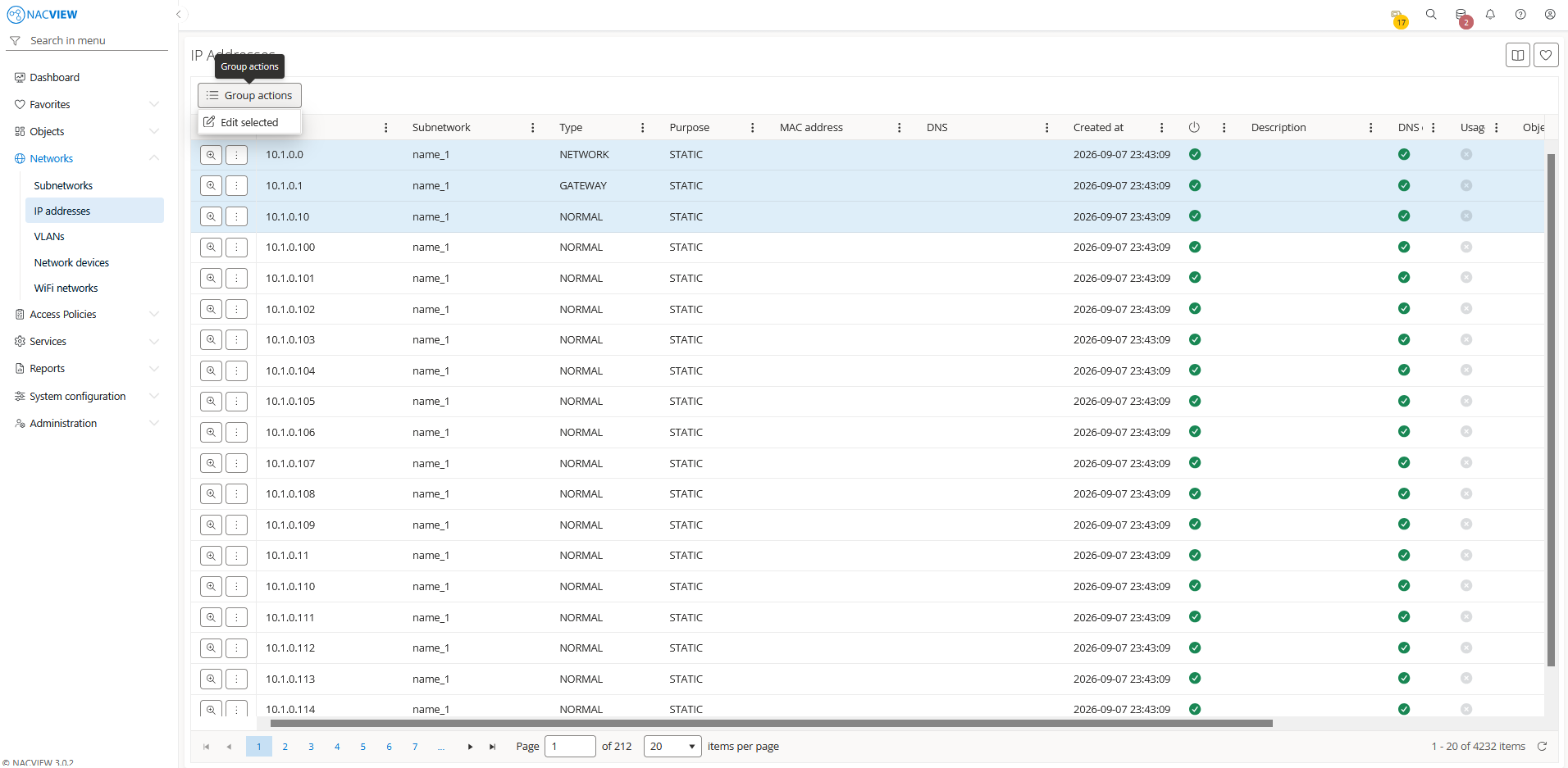
Group actions button is used to perform an action on multiple selected IP addresses at
once. Addresses can be selected by holding the Ctrl or Shift key while clicking. The
available action is Edit selected, which opens a bulk edit dialog for the selected addresses.
Edit dialog🔗
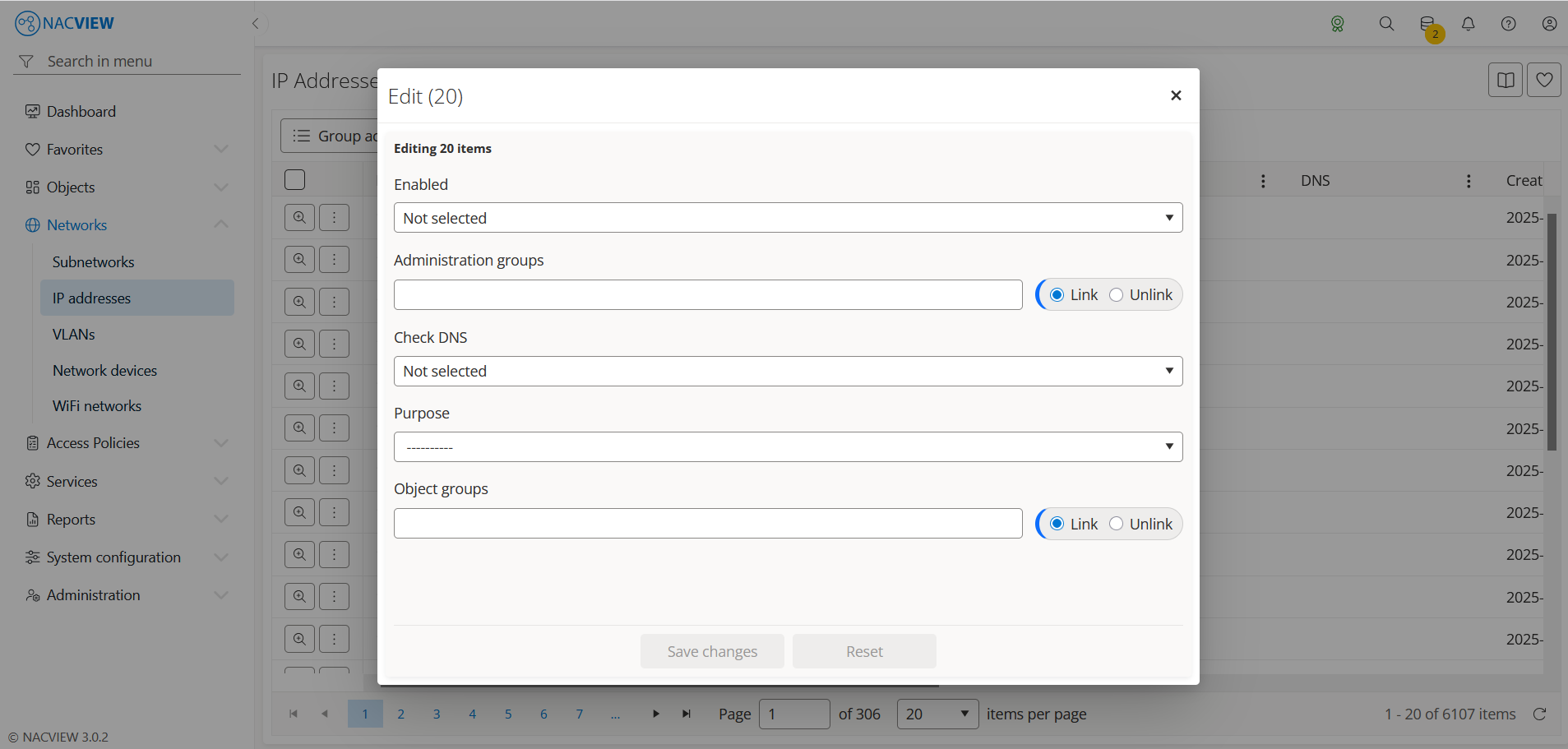
The Edit dialog is used to change selected attributes on multiple selected IP addresses at once. The dialog title shows how many items are being edited (for example, Edit (3)).
Enabled field is used to set the enabled status for all selected addresses.
Administration groups field is used to link or unlink administration groups for all selected addresses, using the Link/Unlink option.
Check DNS field is used to enable or disable DNS checking for all selected addresses. When enabled, NACVIEW performs a DNS lookup for the address to retrieve the hostname associated with it.
Purpose field is used to set the purpose for all selected addresses. Select one of the available values from the drop-down list: Static, Dynamic, Reserved, or Service.
Object groups field is used to link or unlink object groups for all selected addresses, using the Link/Unlink option.
Save changes button is used to apply the changes to all selected addresses.
Reset button is used to clear the changes made in the dialog.
The IP address details panel🔗
The IP address details panel opens when a specific IP address is selected from the list (Details). It displays all information about the selected address in one place, in read-only mode. The top of the panel contains action buttons for the selected address (Edit, Manage, Archive), while below them the full set of the address’s attributes is shown, including Name, Purpose, Type, MAC address, DNS, Description, Enabled status, DNS check status, Usage status, and the Subnetwork it belongs to.
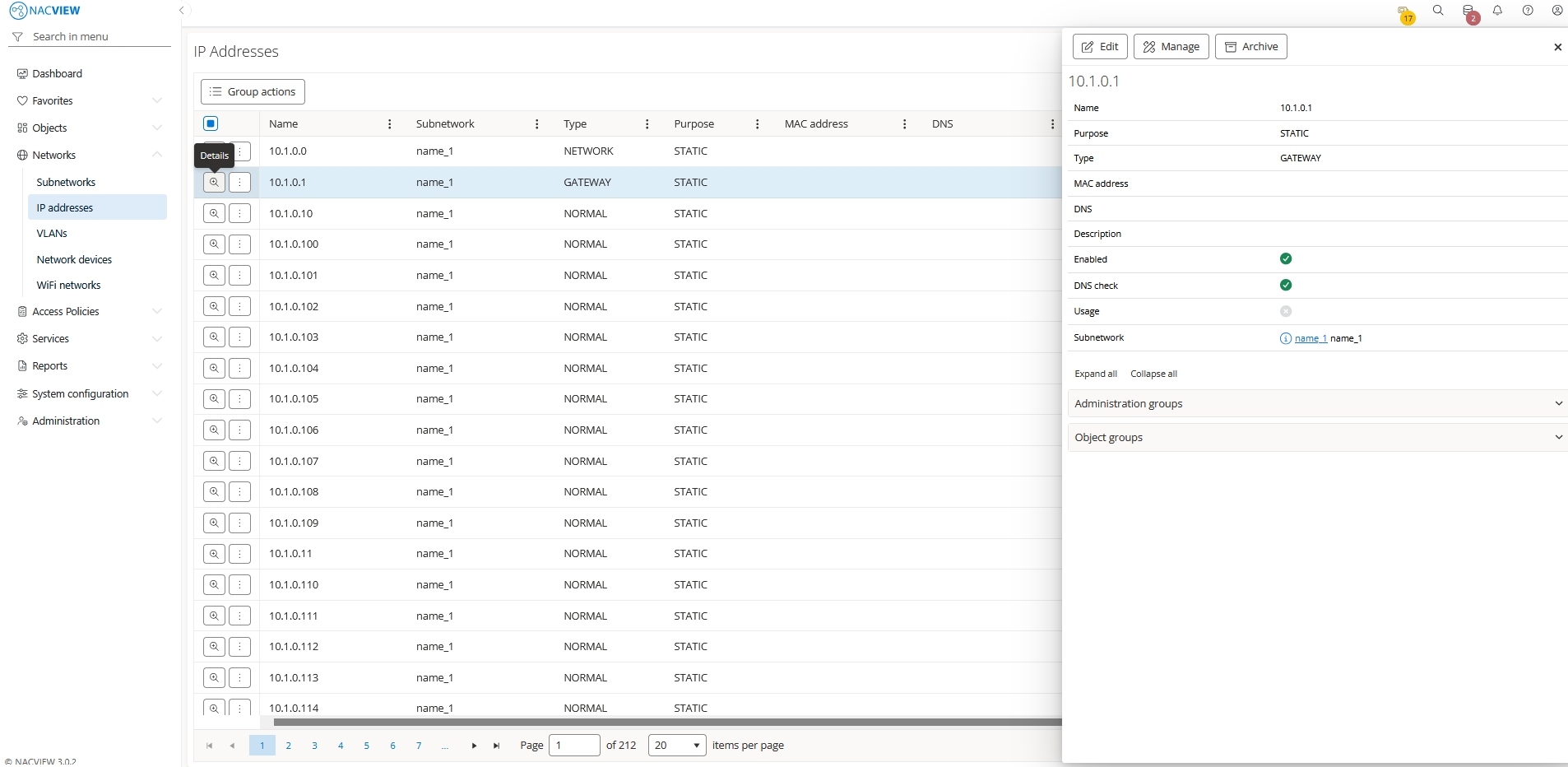
Edit button is used to edit the attributes of the selected IP address.
Manage button is used to open the IP settings panel for the selected IP address. For addresses of type Network or Gateway, these addresses cannot be modified.
Archive button is used to display the archive records related to the selected IP address, showing when each record was created, by whom, from which IP address, and the object name and type.
Panels🔗
The following expandable panels are available at the bottom of the right-hand side of the details view:
Administration groups - shows the administration groups linked to this IP address.
Object groups - shows the object groups to which this IP address belongs.
IP settings🔗
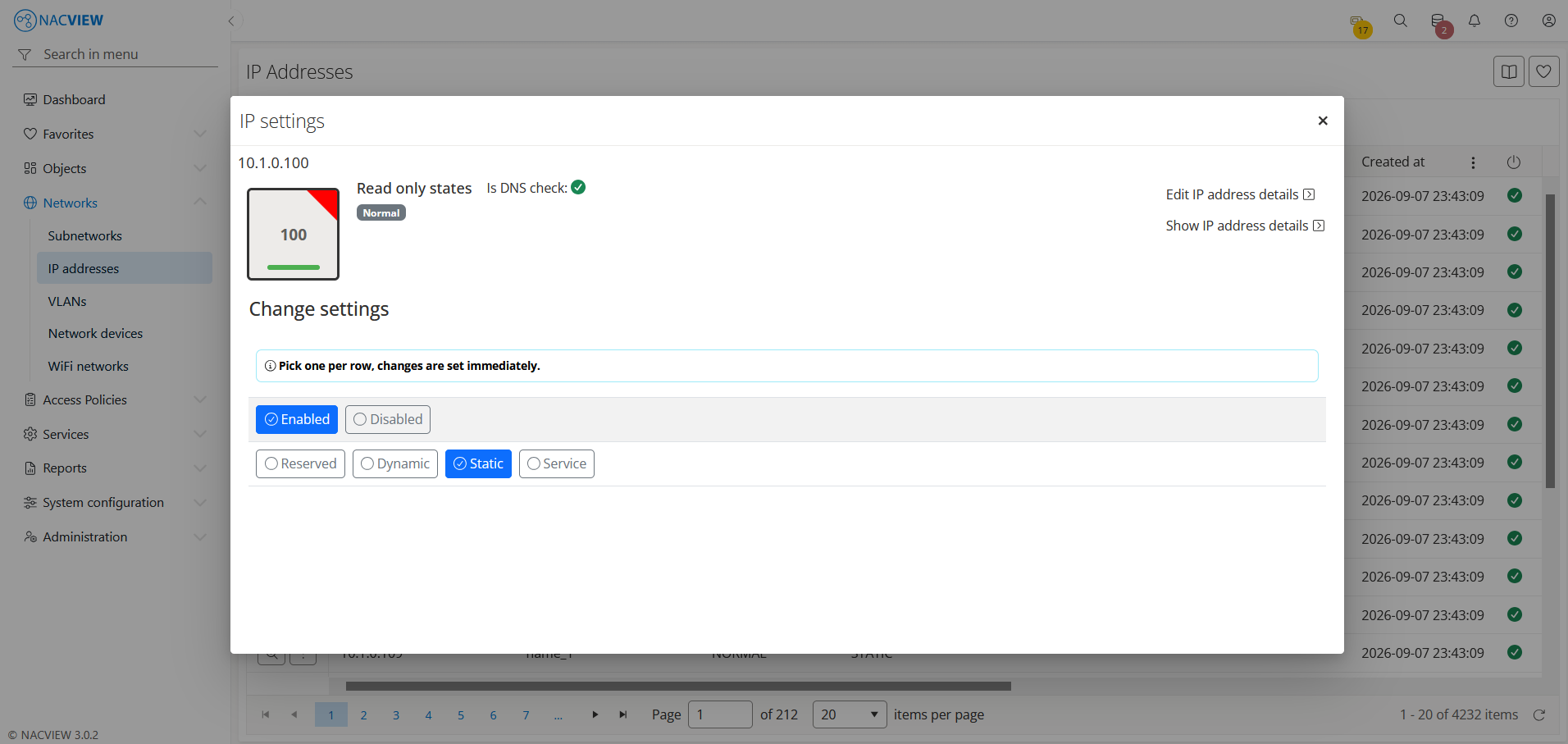
The IP settings panel (opened using the Manage button) lets you review and change the settings of the selected IP address.
At the top it shows a quick summary in read-only form: the address value, its status icon (using the same colour coding as the IP matrix), its Read only states (for example, Normal, Network, Technical IP), which are the fixed roles inherent to that address within the subnetwork, and whether DNS check is enabled for it.
The Change settings section is used to change the address settings directly. Pick one option per row; the changes are applied immediately. You can set the address status (Enabled or Disabled) and its purpose (Reserved, Dynamic, Static, or Service).
Edit IP address details link is used to open the edit form for the selected IP address.
Show IP address details link is used to open the details panel for the selected IP address.
See also
For instructions on how to configure IP addresses step by step, see Configuration Guides → IP address configuration.