Add🔗
Use this method to manually add a single new WiFi Network to the local NACVIEW database.
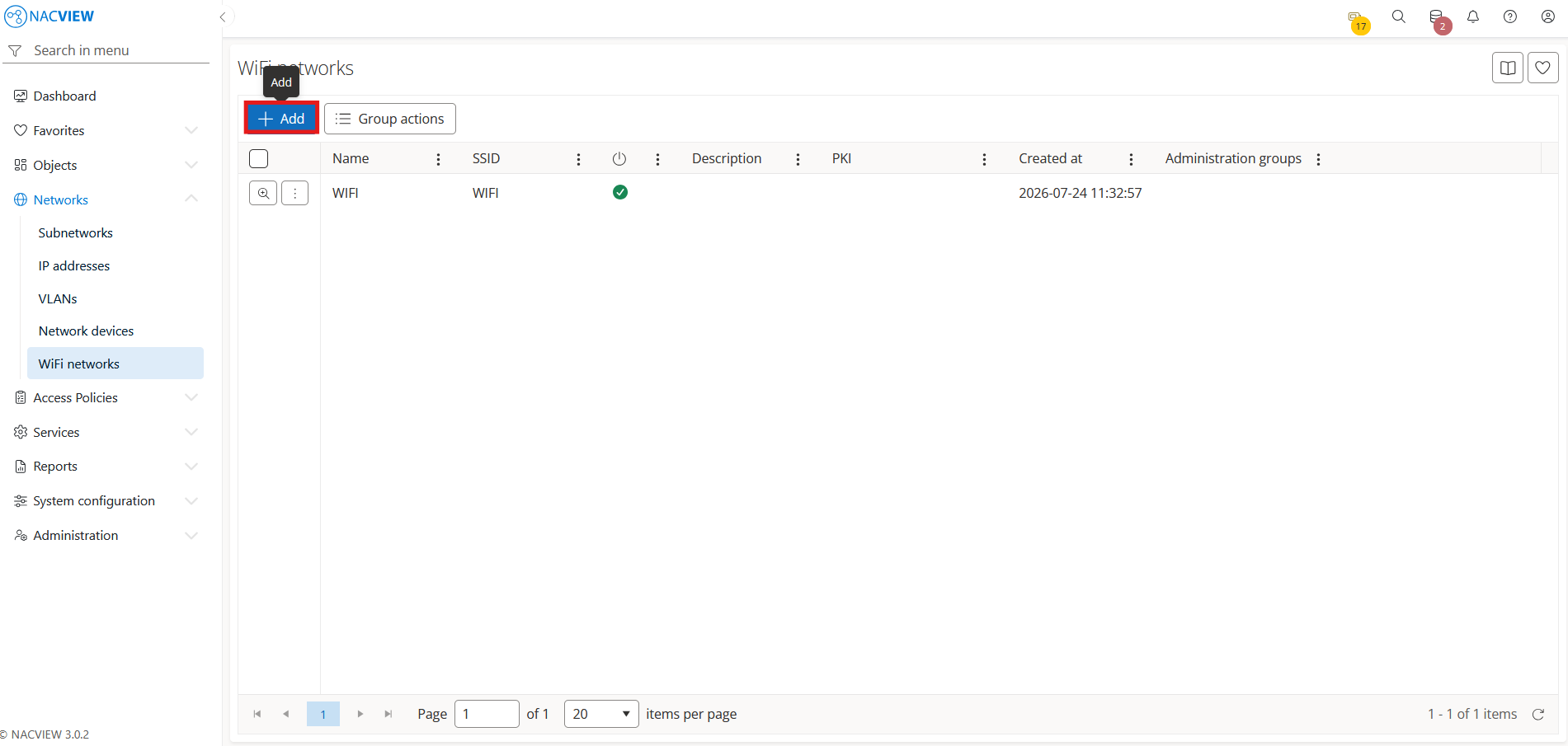
Open Networks and go to WiFi networks.
Select the
Addbutton.
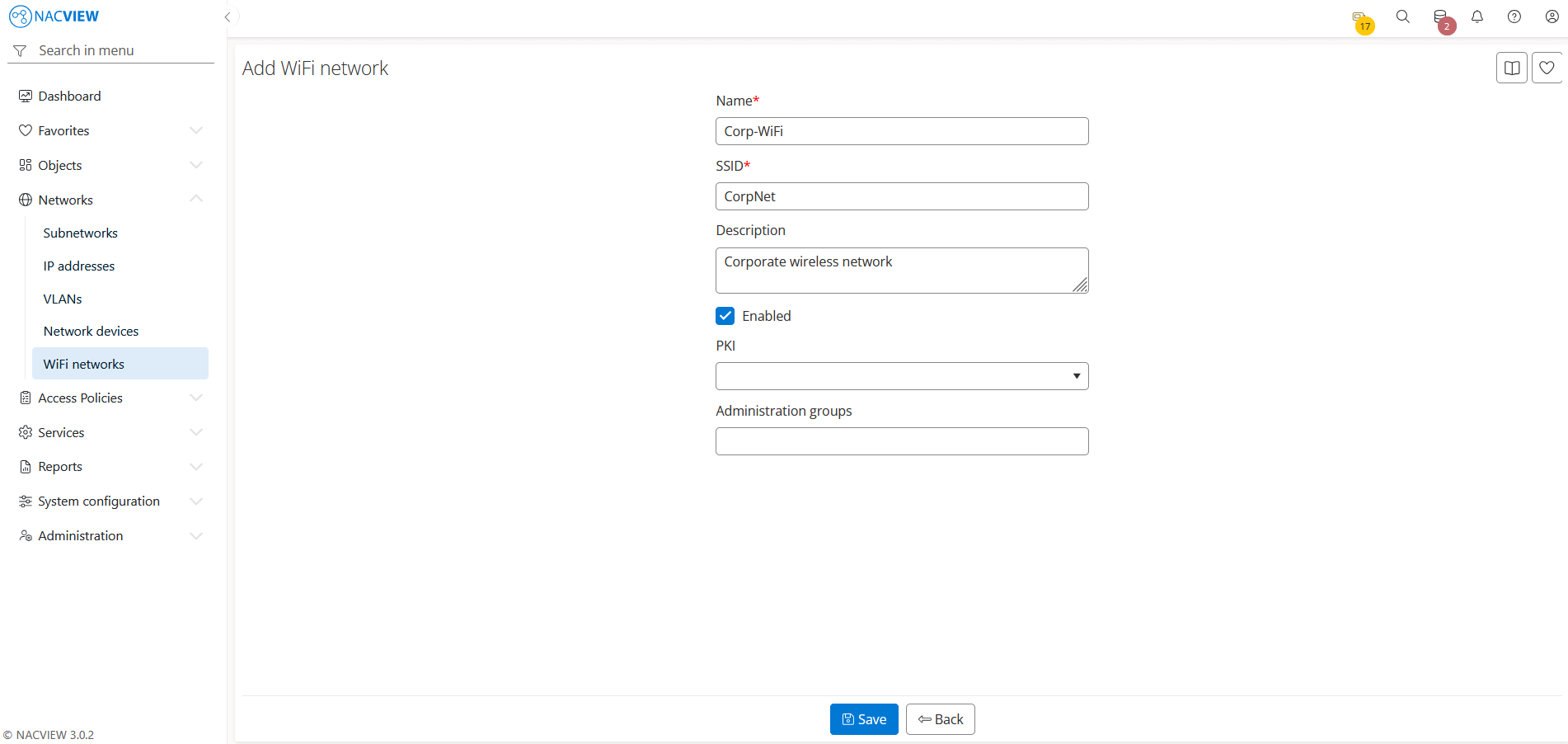
Fill the WiFi network fields.
Note
The SSID must be unique across the NACVIEW database. If you want to use a different PKI for the WiFi network, select it from the list. By default, a WiFi network uses the default PKI specified in the PKI settings, or the PKI associated with the user via LDAP services.
4. Select the Save button to create the WiFi network.
The new WiFi network appears on the WiFi networks list.
Note
To discard your changes without creating the WiFi network, select Back button.