Add🔗
Use this method to manually add a single new Subnetwork to the local NACVIEW database.
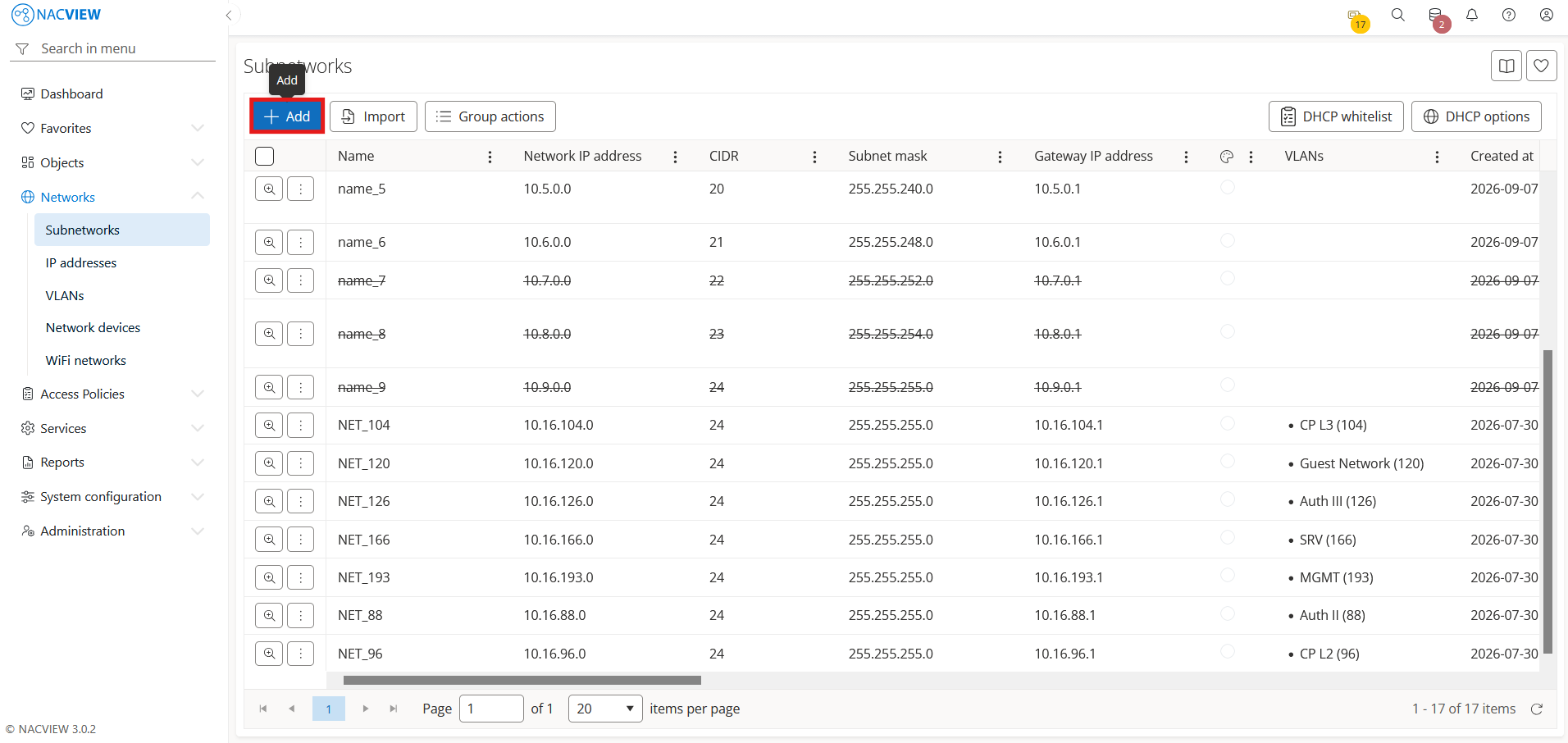
Open Networks and go to Subnetworks.
Select the
Addbutton.
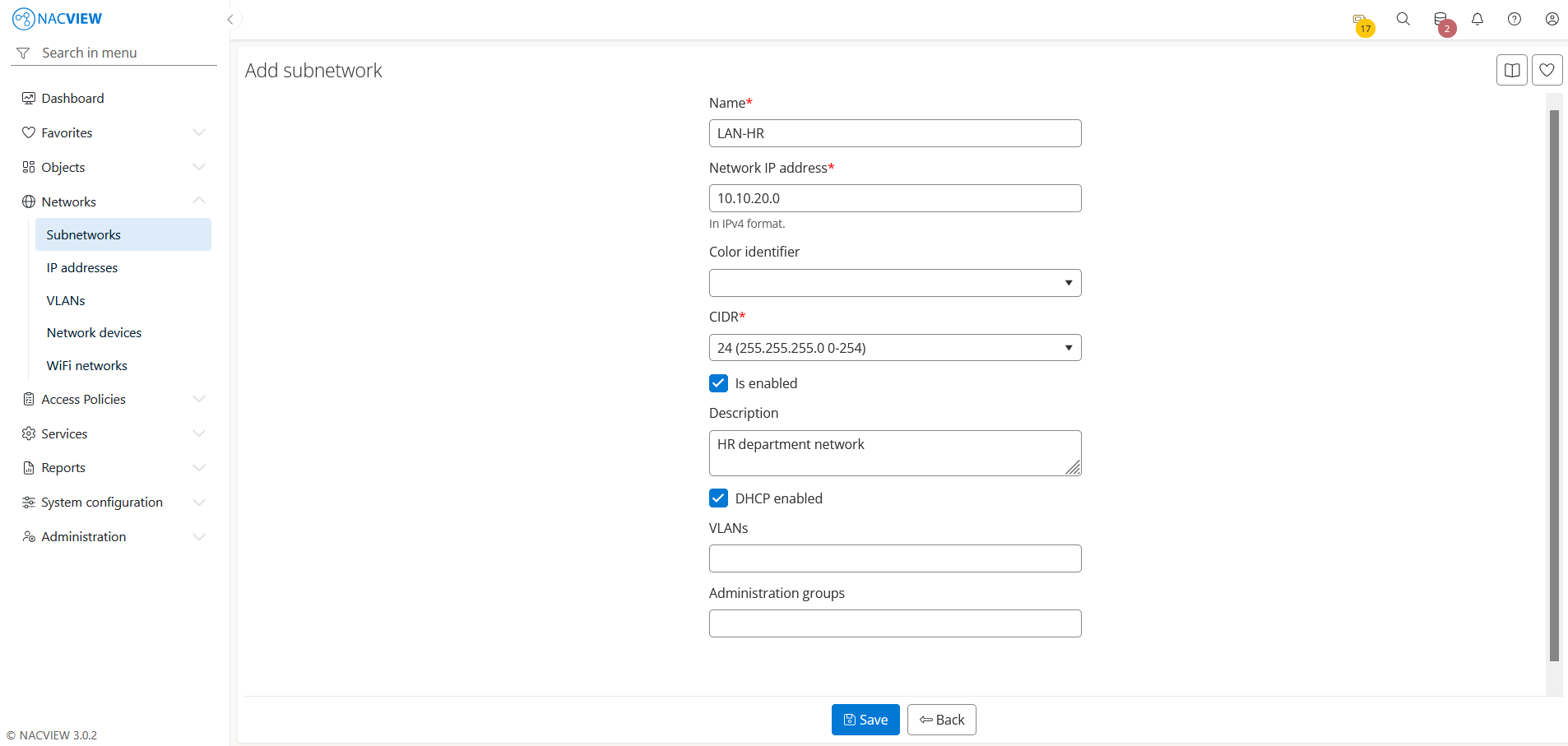
Fill the subnetwork fields.
Note
You can select a subnet mask from /16 to /30. Regardless of the selected mask, the system automatically creates only the first 256 IP addresses. You can add more addresses using New IP address or in the IP matrix.
In the Network IP address field, enter the first address of the network (the network address). It must be a valid network address for the selected subnet mask, aligned to the subnet boundary. For example, with the /25 mask (255.255.255.128), valid network addresses are 10.254.0.0 and 10.254.0.128, while 10.254.0.64 is a host address and will be rejected.
In the VLANs field, select the VLANs in which this subnetwork will operate.
Important
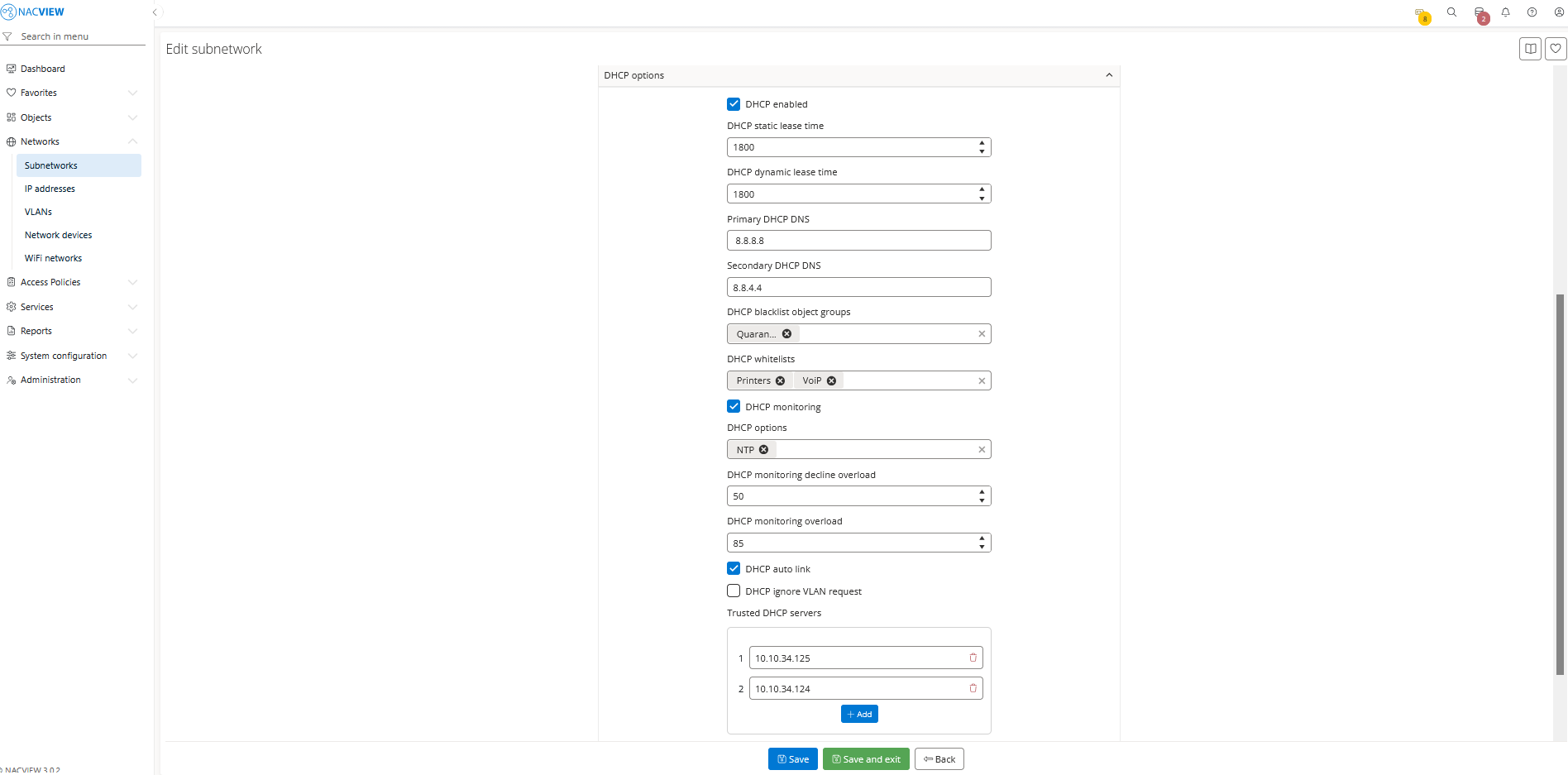
To configure the DHCP server settings and More options sections in NACVIEW, first create the subnetwork, then edit it. These sections are available only when editing an existing subnetwork.
Note
Select the DHCP monitoring checkbox to periodically check the DHCP server load. Below, you can set the thresholds (in percent) above which the system reports an overload:
DHCP monitoring decline overload: the percentage of DHCPDECLINE messages.
DHCP monitoring overload: the percentage of leased IP addresses in the subnetwork.
Select the DHCP auto link checkbox if you want the system to populate the MAC address database based on DHCP requests from this subnetwork. Select the DHCP ignore VLAN request checkbox if you want the NACVIEW server to only listen for DHCP frames and log them in reports, without responding to them.
In the Trusted DHCP servers field, enter the IP addresses of authorized DHCP servers other than NACVIEW. NACVIEW analyzes DHCP frames in the network and notifies administrators if it detects a rogue DHCP server.
Note
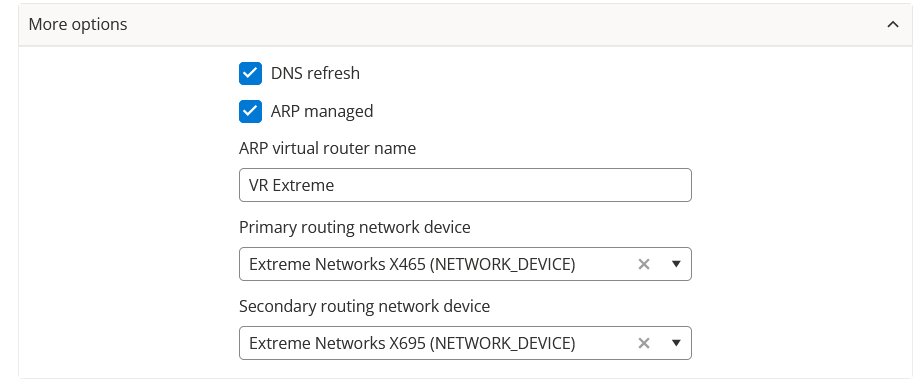
Select the DNS refresh checkbox to periodically query the DNS server and fill in the host names for IP addresses in the subnetwork.
The ARP feature generates a table of MAC-to-IP address bindings. Traffic from the switch is forwarded to a given IP address only if that address is bound to the specified MAC address.
This feature is available for Extreme Networks switches. To use it with switches from other vendors, please contact NACVIEW support.
For correct configuration, refer to the vendor documentation, for example Extreme Networks Knowledge Base.
4. Select the Save button to create the subnetwork.
The new subnetwork appears on the Subnetworks list.
Note
To discard your changes without creating the subnetwork, select Back button.