Patch installation🔗
Use this method to install a patch for the current version of the NACVIEW system directly from the CLI. A patch delivers fixes for the installed system version without upgrading the system to a new version.
Important
Before committing to the patch-installation process, administrators should take appropriate measures: create a backup or at least snapshot of NV3 primary node; schedule service window for the update; allow access from NV3 nodes to the cloud.nacview.com and repo.nacview.com domain on standard HTTPS protocol (TCP/443).
Important
Install the patch on all system nodes, starting with the Master node. Patches are available even when there is no support for the current system version (e.g. 3.0.3).
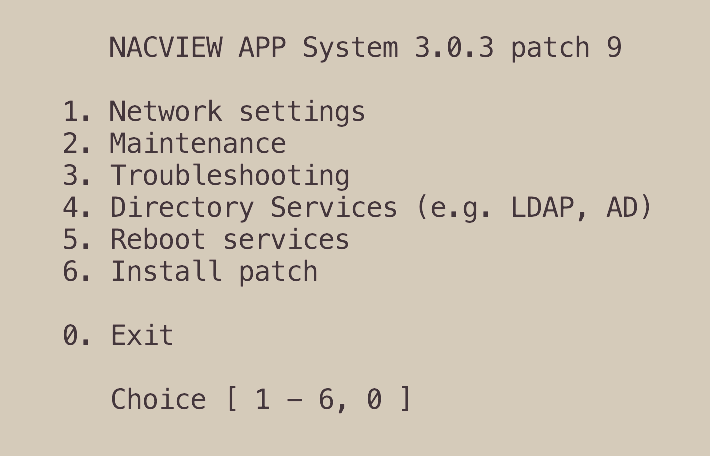
Log in to the system node via SSH or open its CLI console. The NACVIEW main menu is displayed. The header shows the installed system version and patch number (e.g. NACVIEW APP System 3.0.3 patch 1).
Type
6(Install patch) and pressEnter.
Wait while the system checks the available patch (Check system patch). When the check is complete, the system displays the installed patch version (Installed patch version) and, if a newer patch is available, the new patch version (New patch version).
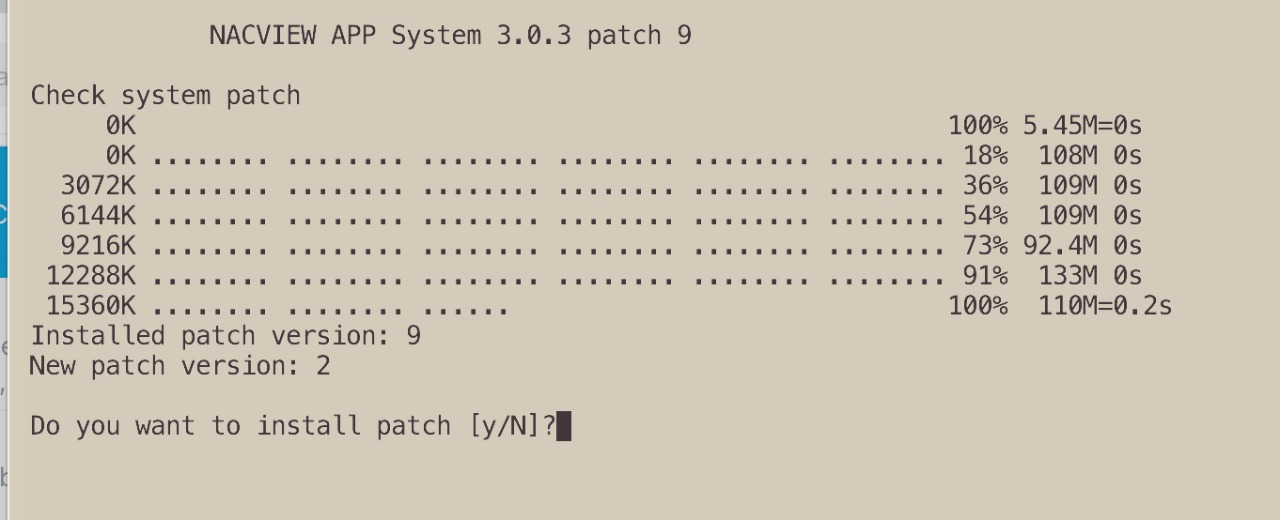
When asked Do you want to install patch [y/N]?, type
yand pressEnter. The patch is installed. When the installation is complete, the message done is displayed.
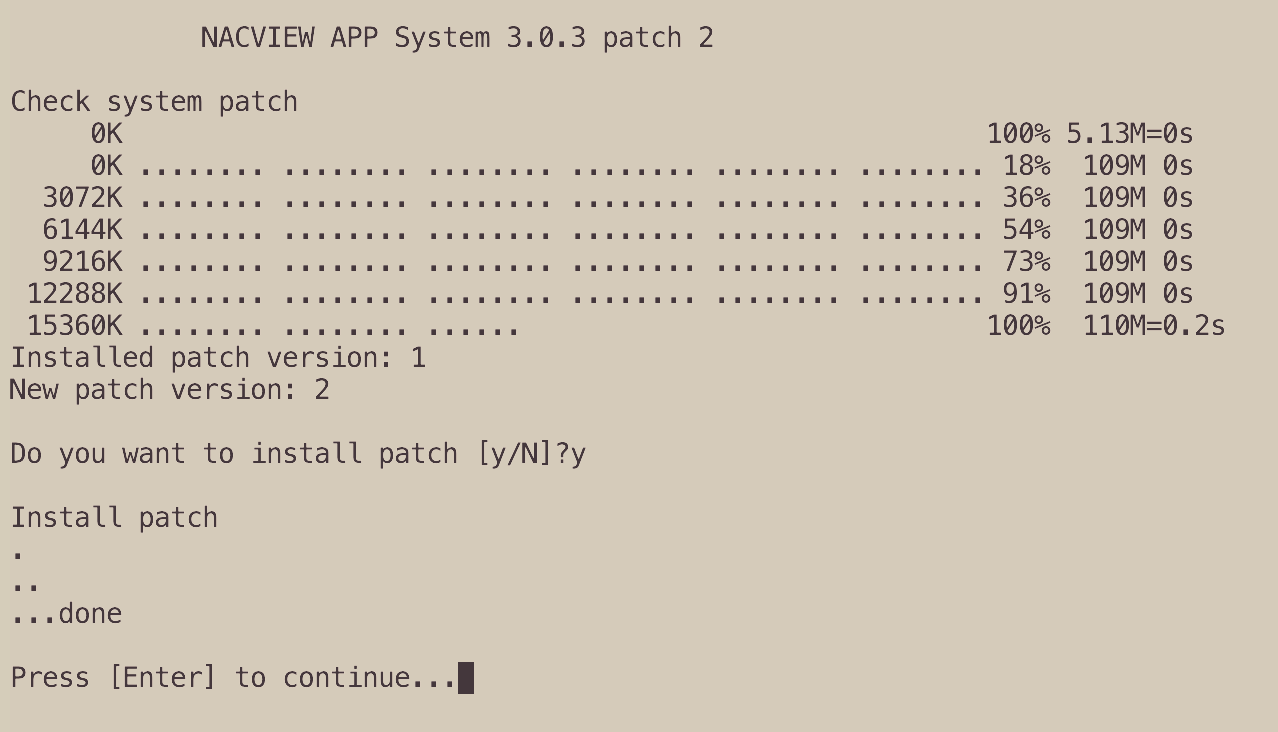
Press
Enterto return to the main menu. The new patch number is shown in the header of the main menu (e.g. NACVIEW APP System 3.0.3 patch 2).Repeat steps 1-5 on each remaining system node.
Note
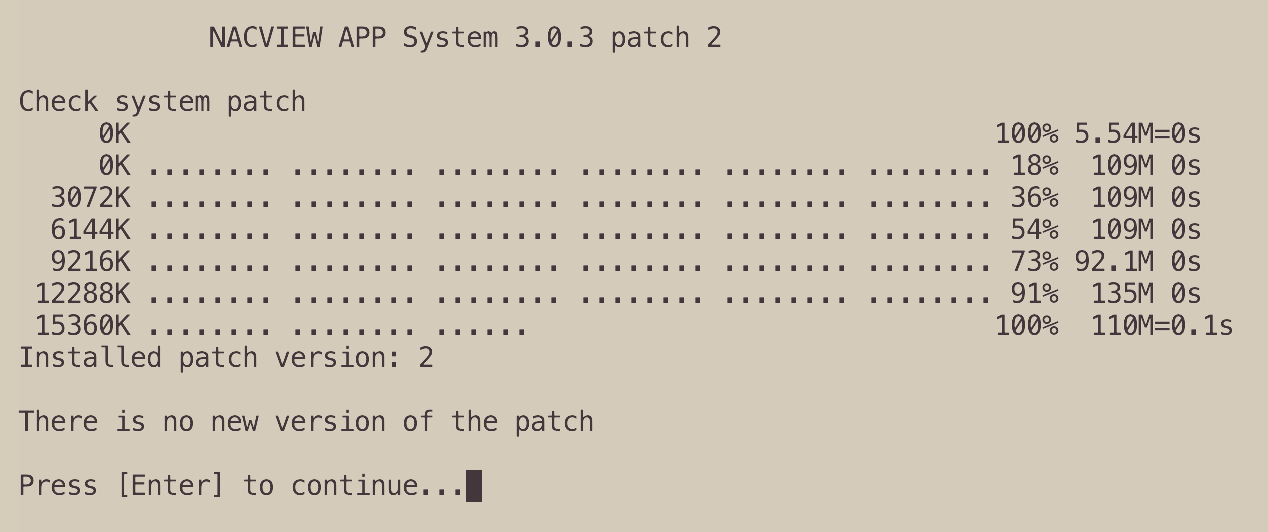
If no newer patch is available, the message There is no new version of the patch is
displayed after the check in step 3. Press Enter to return to the main menu.